Read the match rate
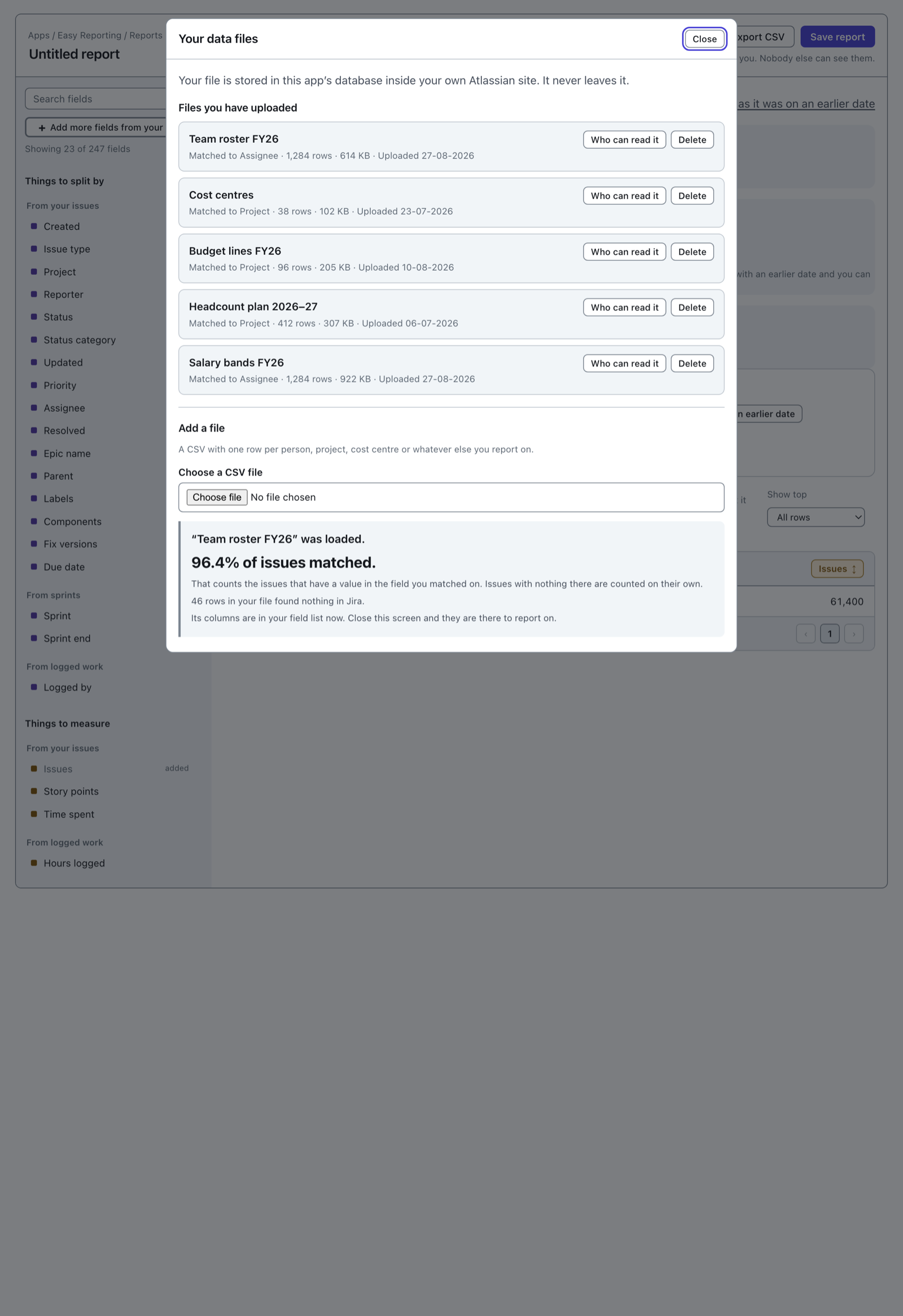
When the last piece arrives, the screen tells you how the match went.
 View full size
96.4% of issues matched is the number to read. It is the share of issues that have a value in the field you matched on and found a row in your file.
Issues with nothing in that field are not counted as misses. An issue with no assignee has not failed to match your roster; it has nothing to match on. Those appear in reports as their own (no value) row.
The line underneath counts the other direction: rows in your file that found nothing in Jira. On a roster that is usually people who have left.
A low match rate means the report is about almost nothing, and the report will not look wrong. A file matched on the wrong column loads perfectly, totals perfectly, and answers a question nobody asked. This number is your only warning, and you get it once — here, as the file lands. Read it before you close the screen.
When the match rate is low
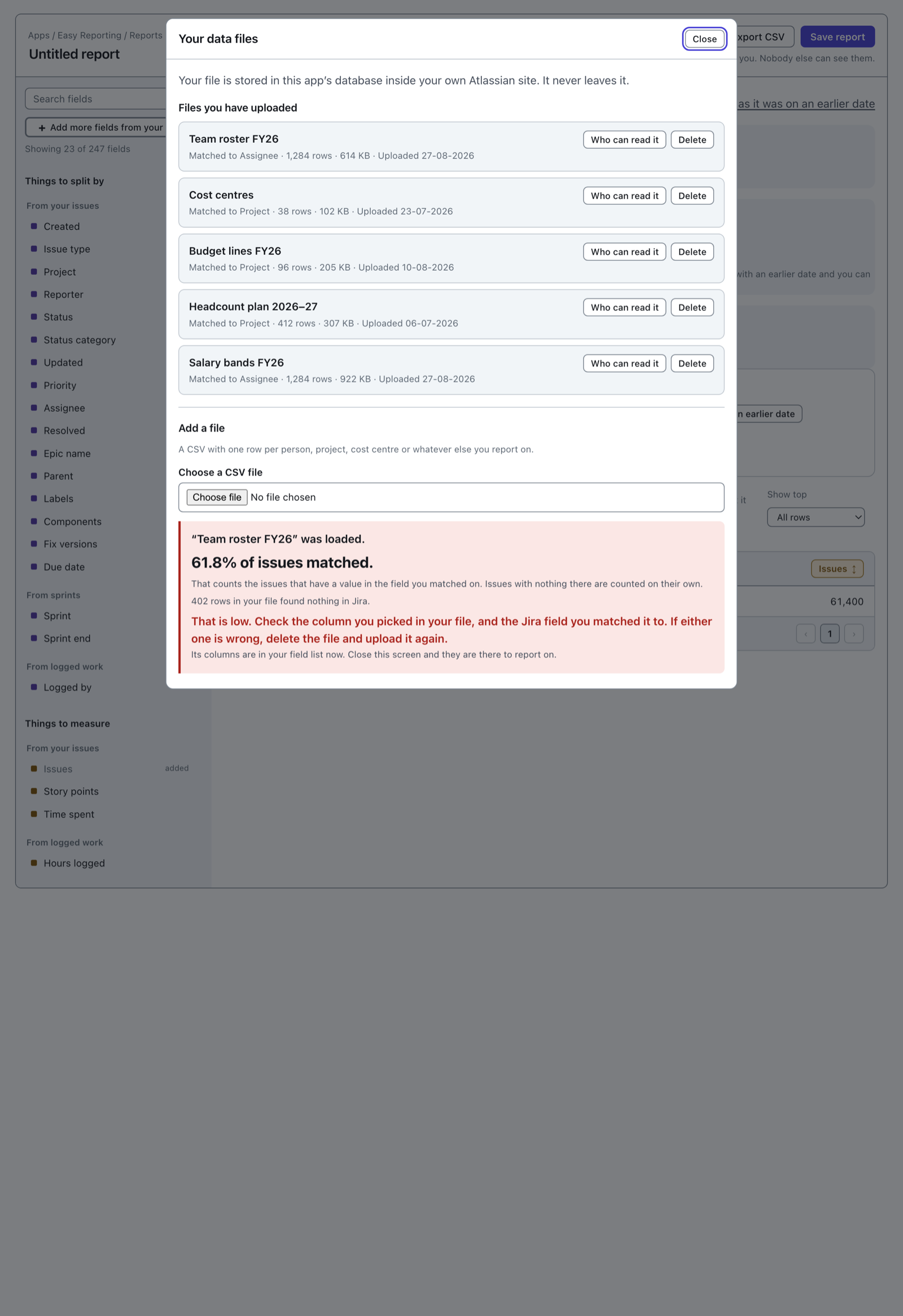
Below 90%, the screen says so and tells you what to do.
 View full size
Check these three things, in this order.
- The Jira field. Did you match a roster to Project instead of Assignee? That gives a very low rate or none at all.
- The column of your file. Matching on Assignee needs the column of Atlassian account IDs. A column of people's names matches nothing, however correct the names are.
- The file itself. If both are right and the rate is still low, the file is genuinely missing rows. An export taken before this quarter's joiners will read like this.
There is nothing to repair in place. Delete the file, fix the spreadsheet, and upload it again. Deleting is on the same screen — see Delete a report or a file.
A low rate does not stop the file loading, and nothing later brings it up again. The file's row does not show it and neither does a report built on the columns. So fix it now, while you are looking at it.
Use the columns in a report
Your uploaded columns are fields now, the same as Status or Assignee.
They are not in the short starting list on the left, because that list is Jira's own common fields. Two ways to reach them:
- Type the column's name into the search box at the top of the list. It searches every field on the site.
- Press Add more fields from your Jira and look under Your uploaded data.
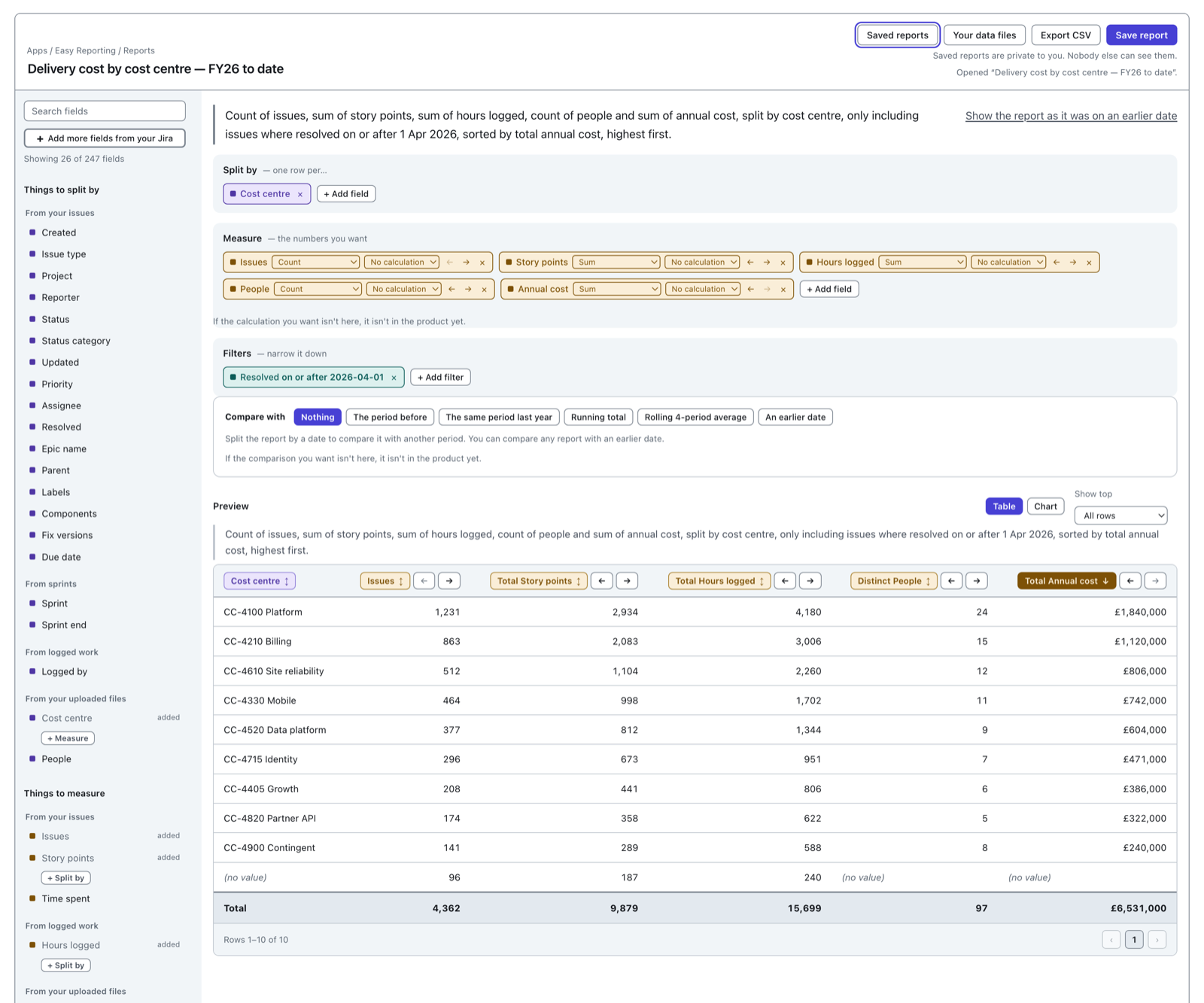
Once a column is on the list, it drops onto Split by, Measure or Filters like anything else.
 View full size
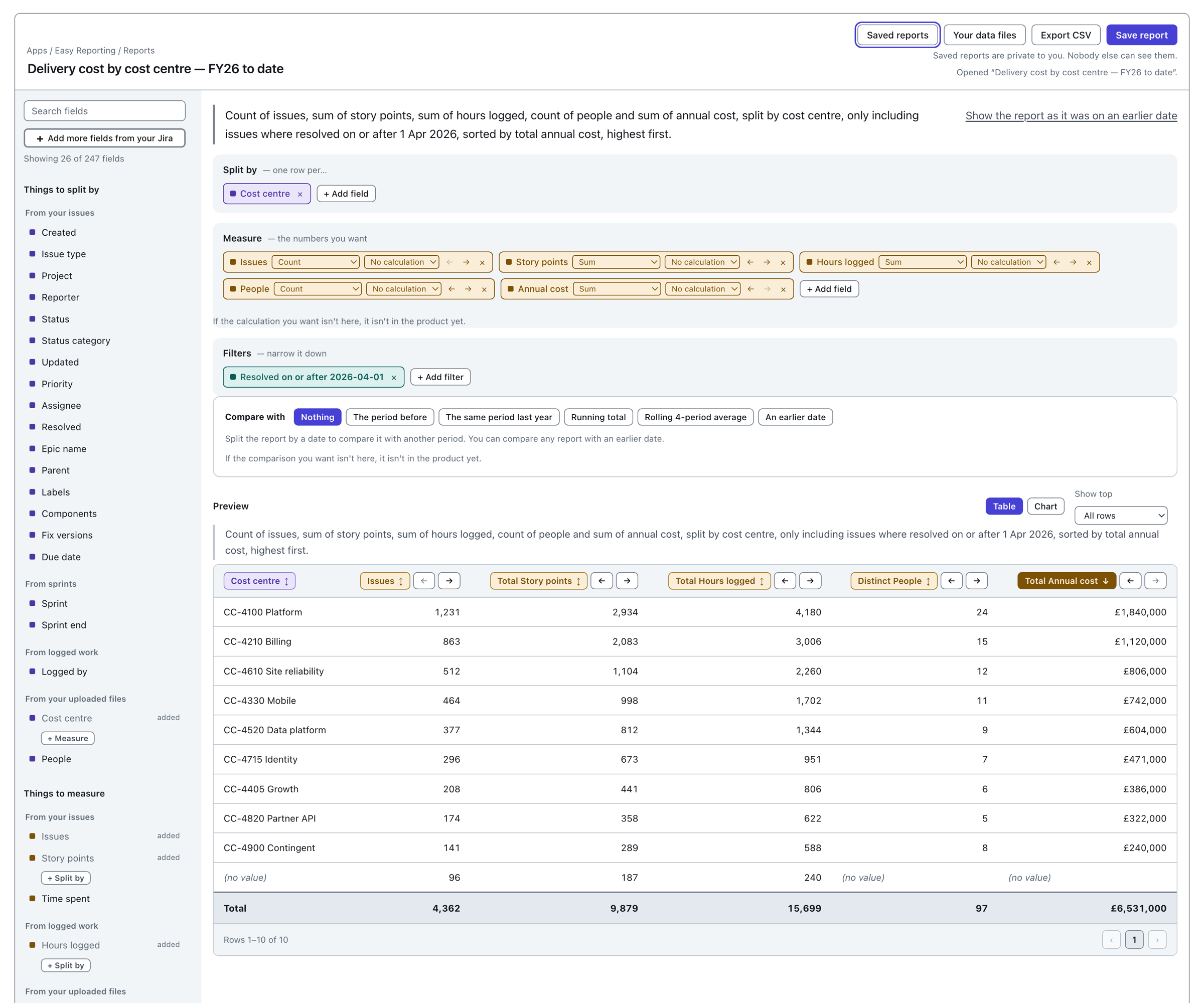
Cost centre, People and Annual cost came out of the spreadsheet. Issues, story points and hours logged came out of Jira. Nothing in the table says which is which, and by this point it does not need to.
The (no value) row is the issues whose assignee is not in the roster. Their Jira figures are real and their roster cells are empty, which is exactly what the match found. Empty rows are always shown and never dropped.
Now build the rest of it: Build a report.
Before this: Join your own data to Jira data.