How to build a chart
A chart is a view of a report you have already built. It draws the same numbers as the table, so nothing about the report changes when you switch to it.
If you have not built a report yet, start with how to build a report.
Switch from table to chart
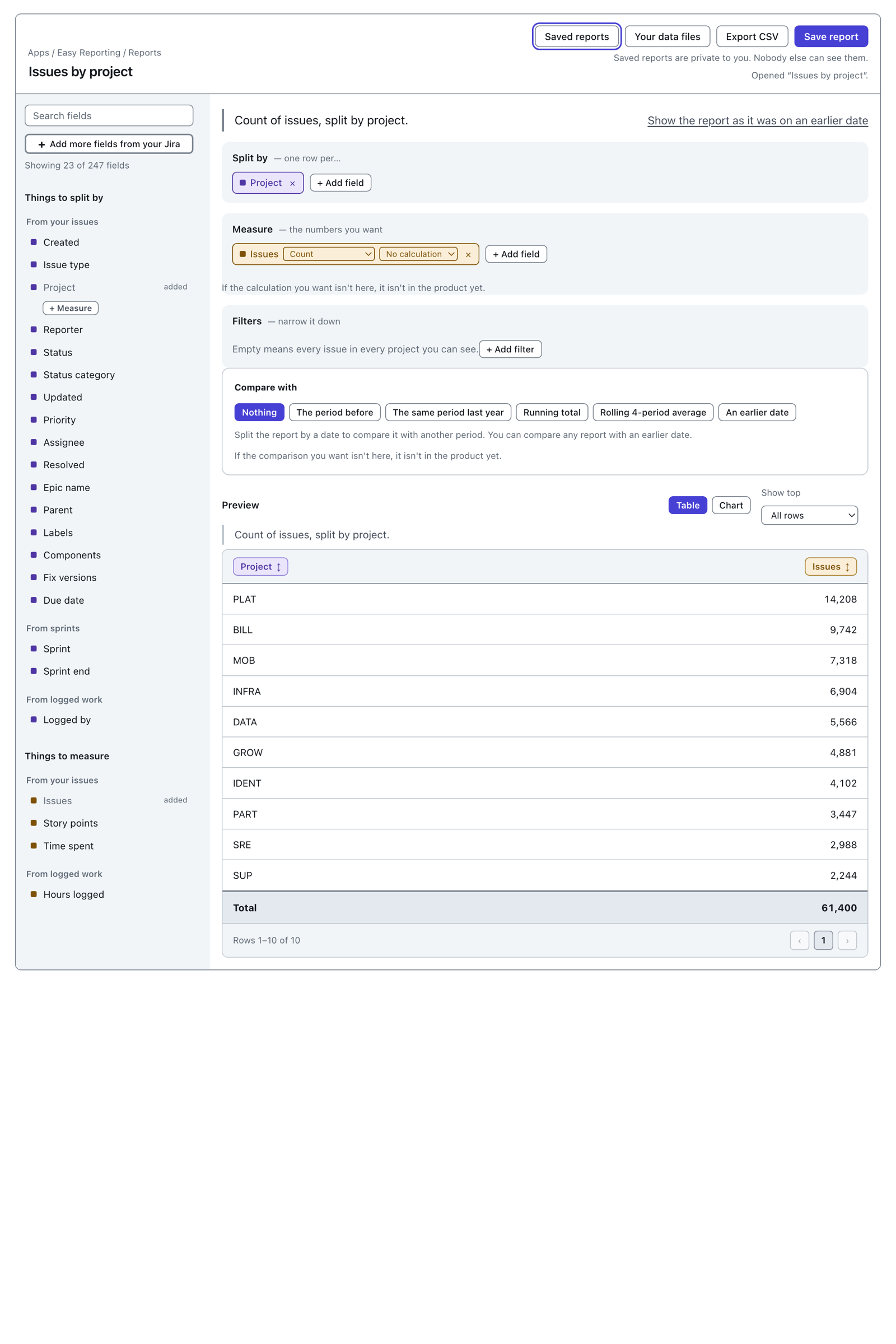
Look above the results for Table and Chart.
 View full size
The two buttons only appear once something is on the Measure shelf. There is nothing to draw until then.
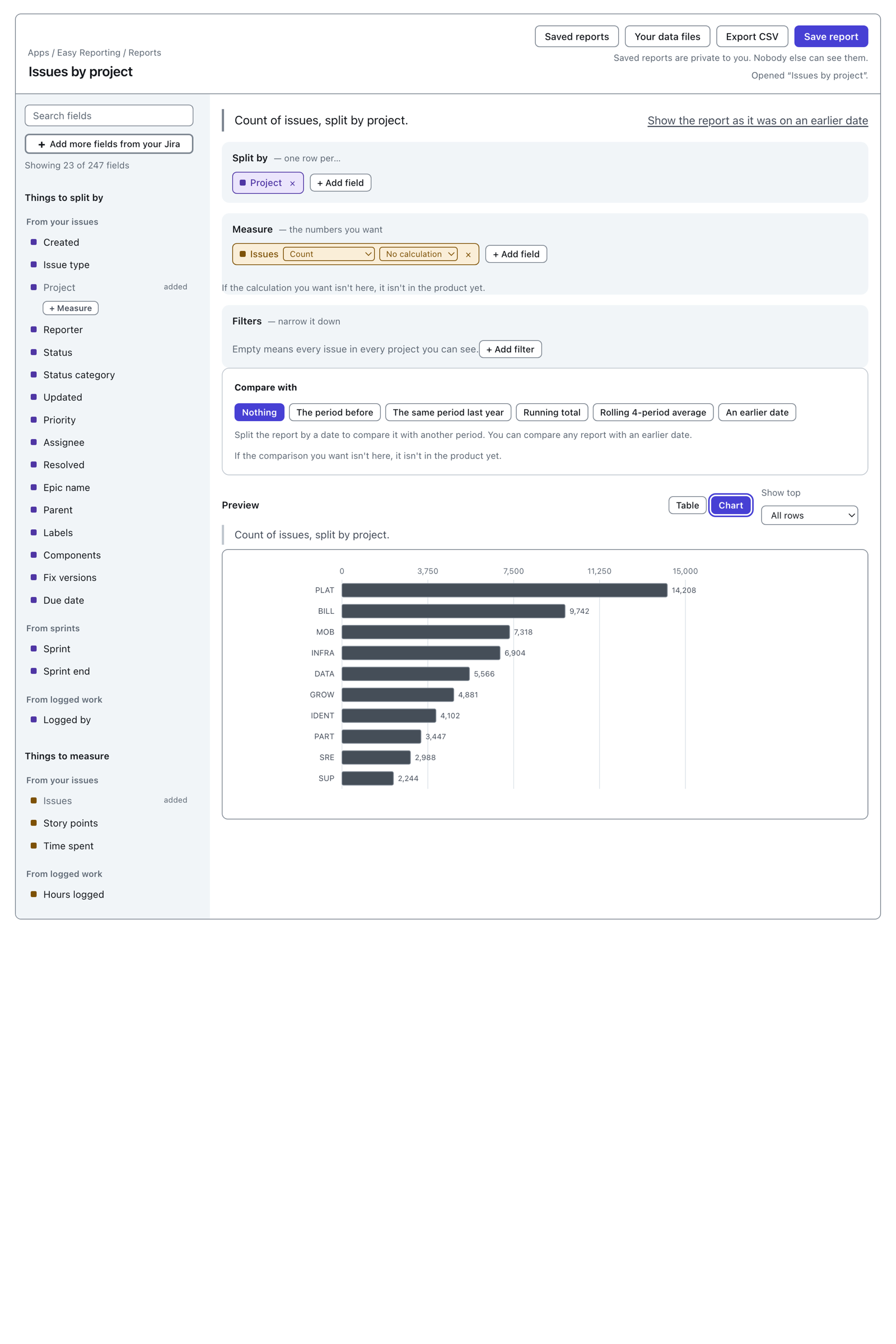
Press Chart.
 View full size
The chart replaces the table. There are no controls above it, and that is the answer rather than a gap: this report is split one way, by a field that is not a date, so bars are the only chart that fits and there is nothing to choose.
The list of chart types follows the report
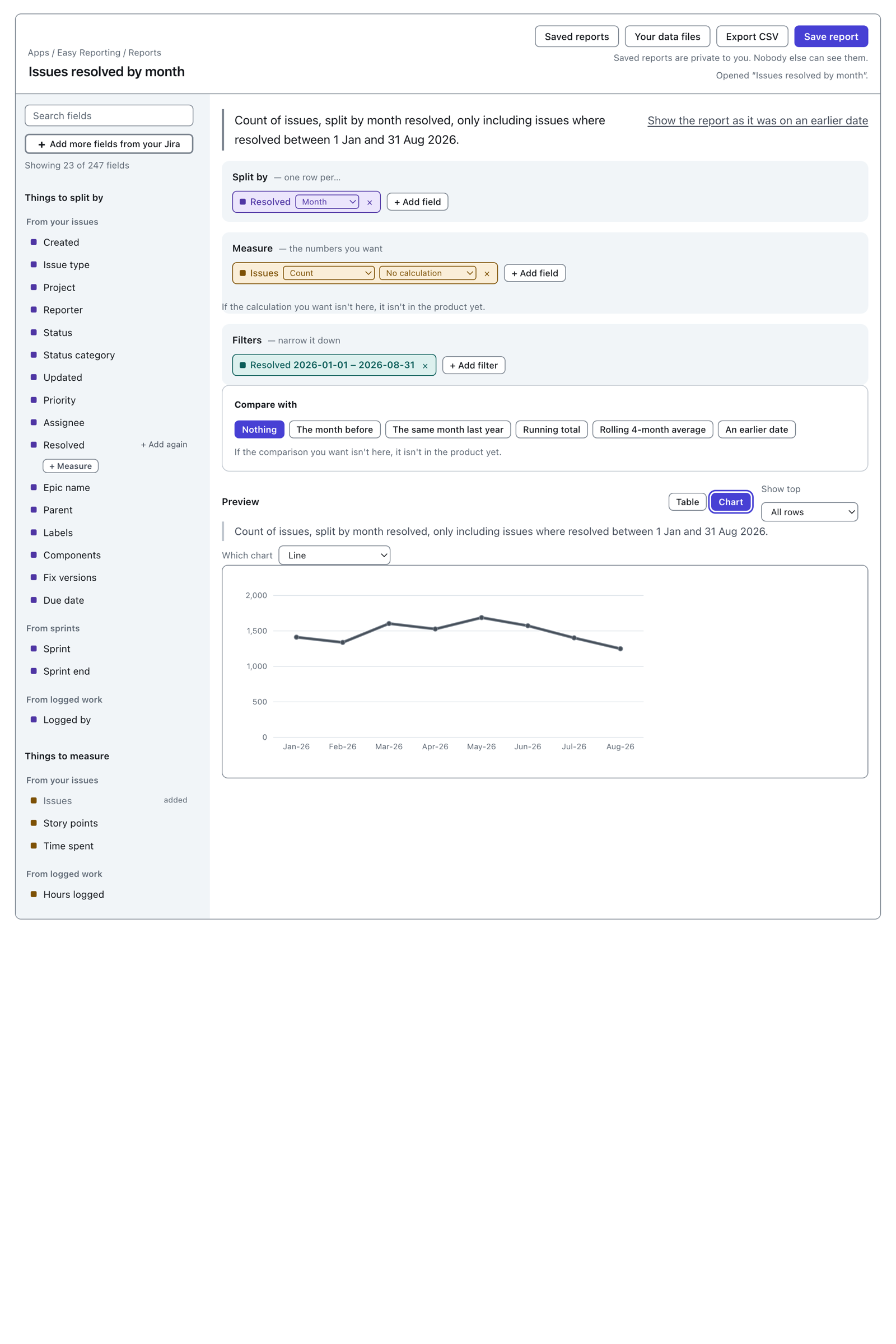
Split the report by a date instead, and there is a choice to make.
 View full size
A date on Split by gives a Which chart dropdown offering Line and Bars, with the line first. Time runs left to right.
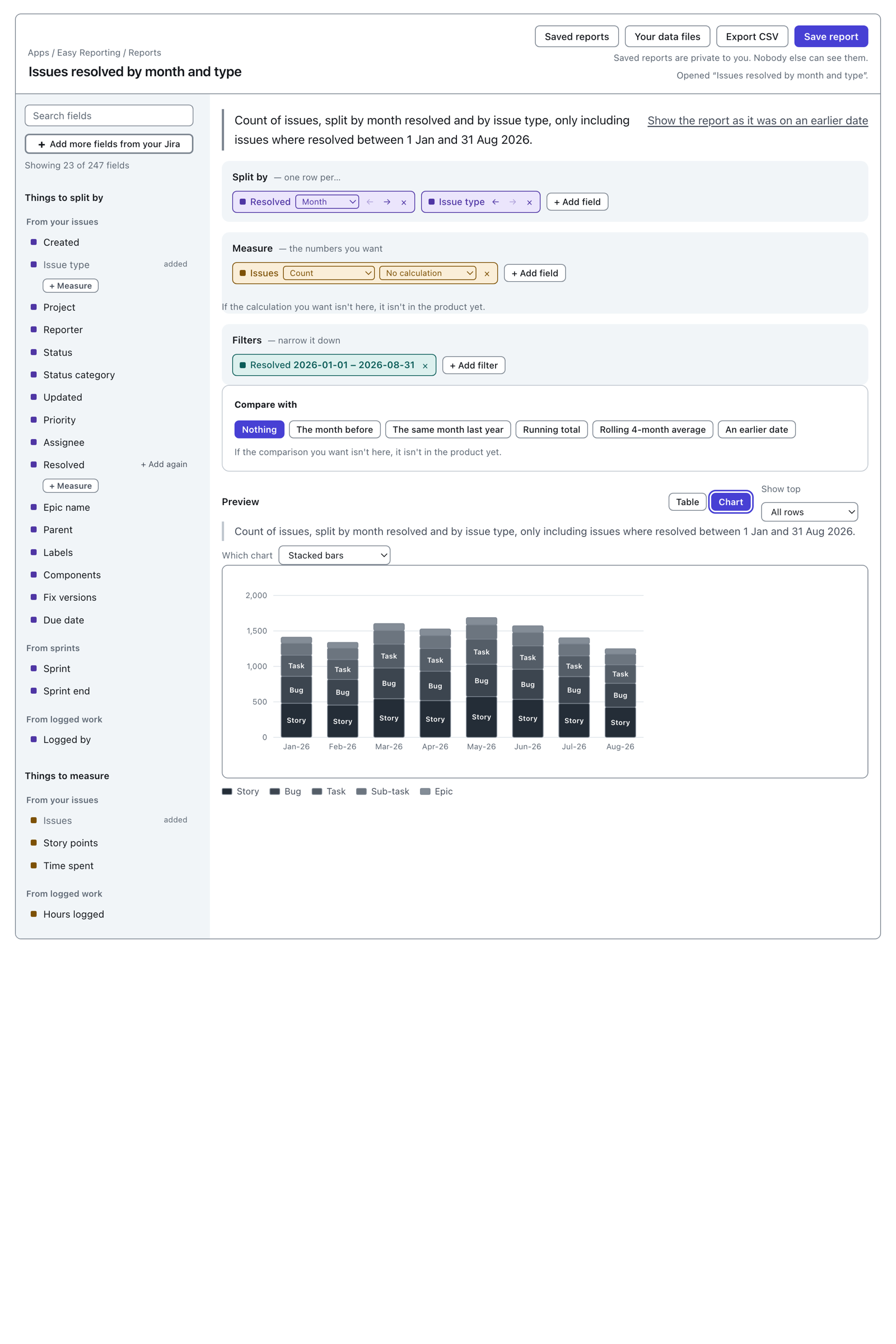
Add a second field to Split by and the bars stack.
 View full size
The second split becomes the pieces of each bar, named in a key underneath. When the first split is a date you can still choose Line, which draws one line per piece instead.
So the list is short and it changes:
| What the report is split by | What you can draw |
|---|---|
| One field, not a date | Bars |
| One date | Line, or bars |
| One date that runs past today | Bars, or a line |
| Two fields, the first a date | Stacked bars, or a line |
| Two fields, neither a date | Stacked bars |
| Three or more fields | Nothing. The table is the report. |
If your report measures more than one number, a second dropdown appears: Which number to draw. A chart draws one number at a time.
When a chart would not be readable
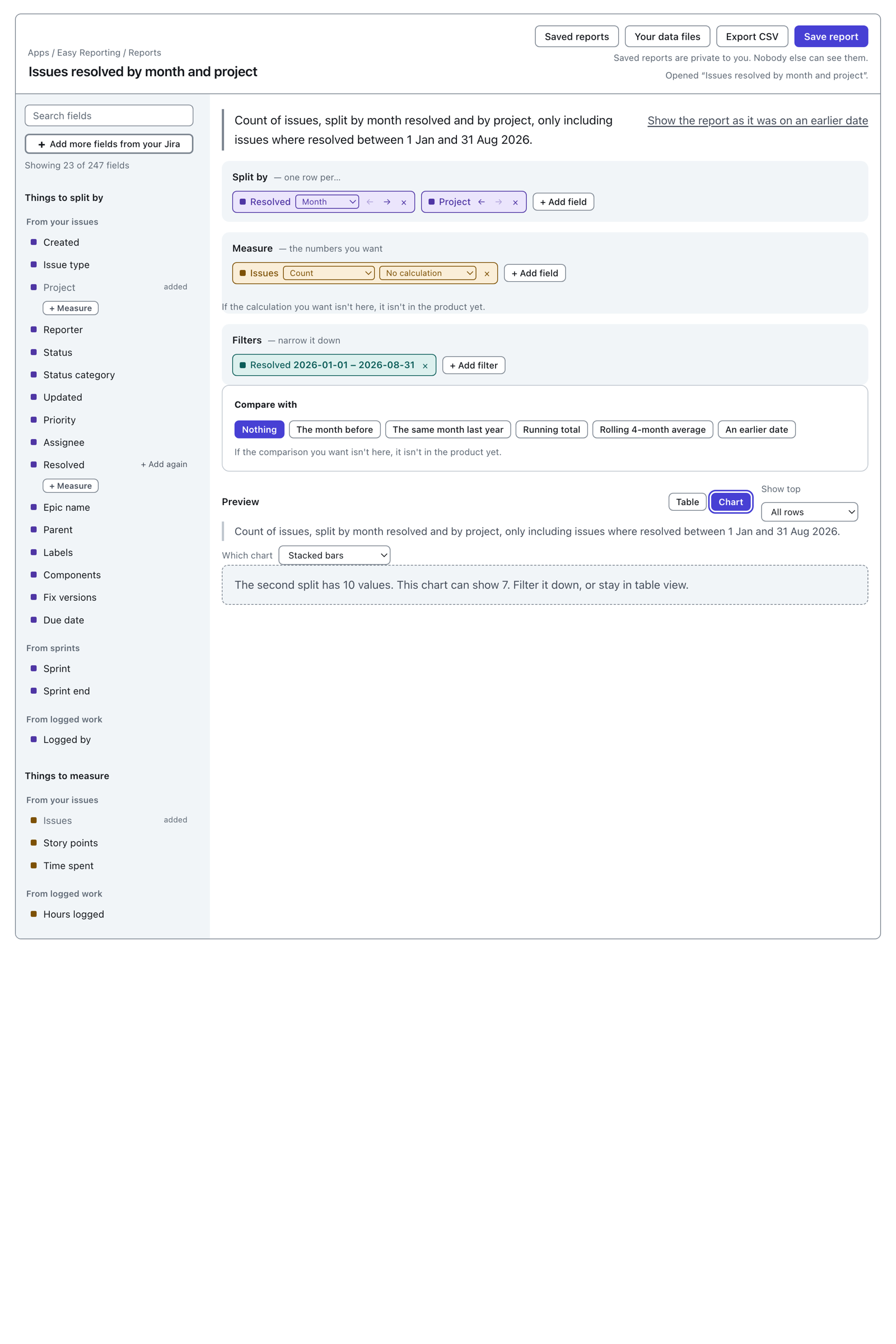
A chart can only separate seven pieces. Past that it says so.
 View full size
The message is:
The second split has 10 values. This chart can show 7. Filter it down, or stay in table view.
Switching to Line does not get round it. Ten lines in seven shades is a picture nobody can read back, so the limit applies to every kind of chart.
Two ways forward. Add a filter so the second split has seven values or fewer, or stay in table view. The table is the report and it still holds every row.
When there can be no chart
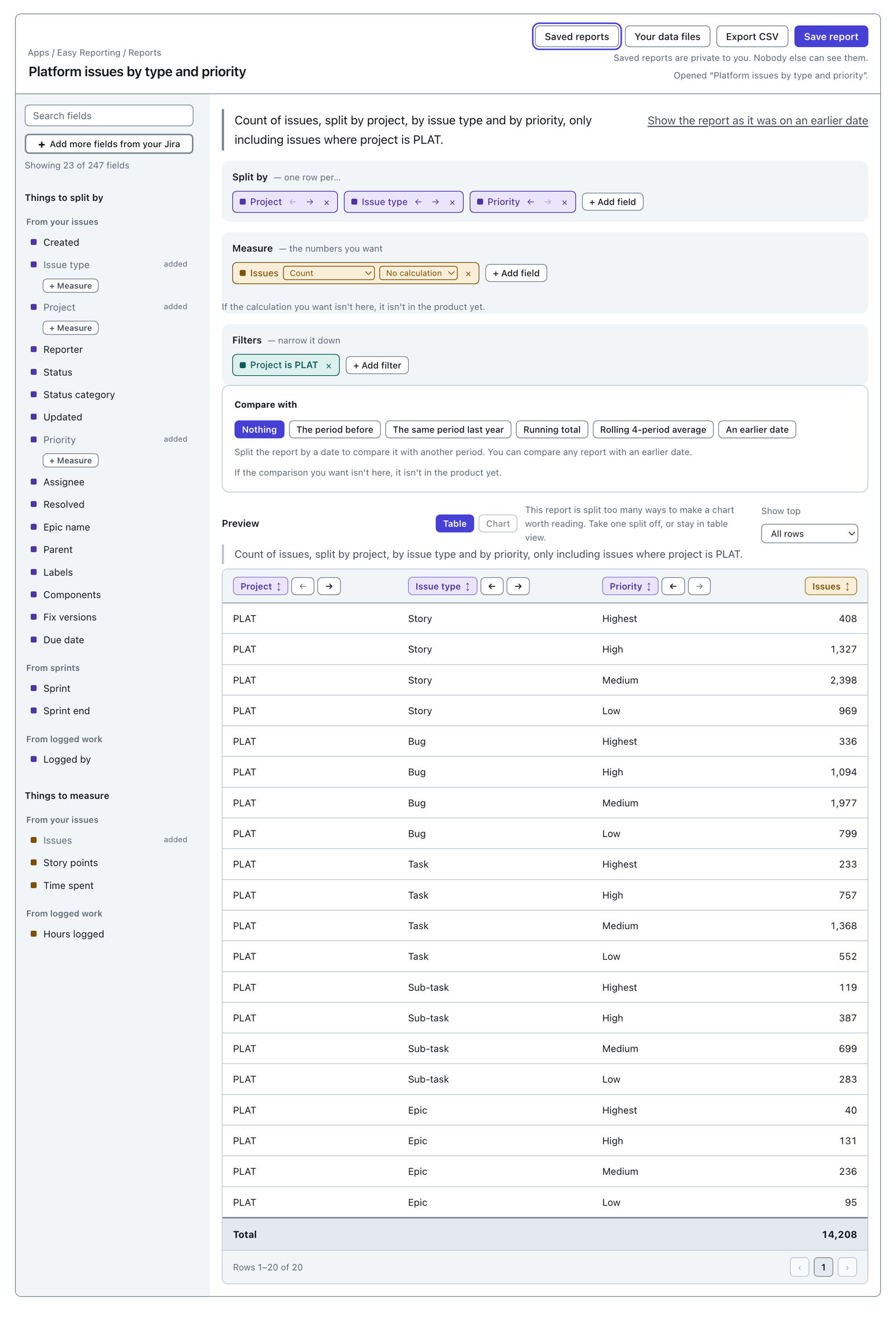
Split a report three ways and the Chart button switches off, with the reason beside it.
 View full size
The message is:
This report is split too many ways to make a chart worth reading. Take one split off, or stay in table view.
There is one other case. With nothing on Split by, the report is a single total row, and the button says:
A chart needs the report split by something. Split it by a field, or stay in table view.
Both are recoverable in one click. Take a split off, or add one.
Dates that run past today
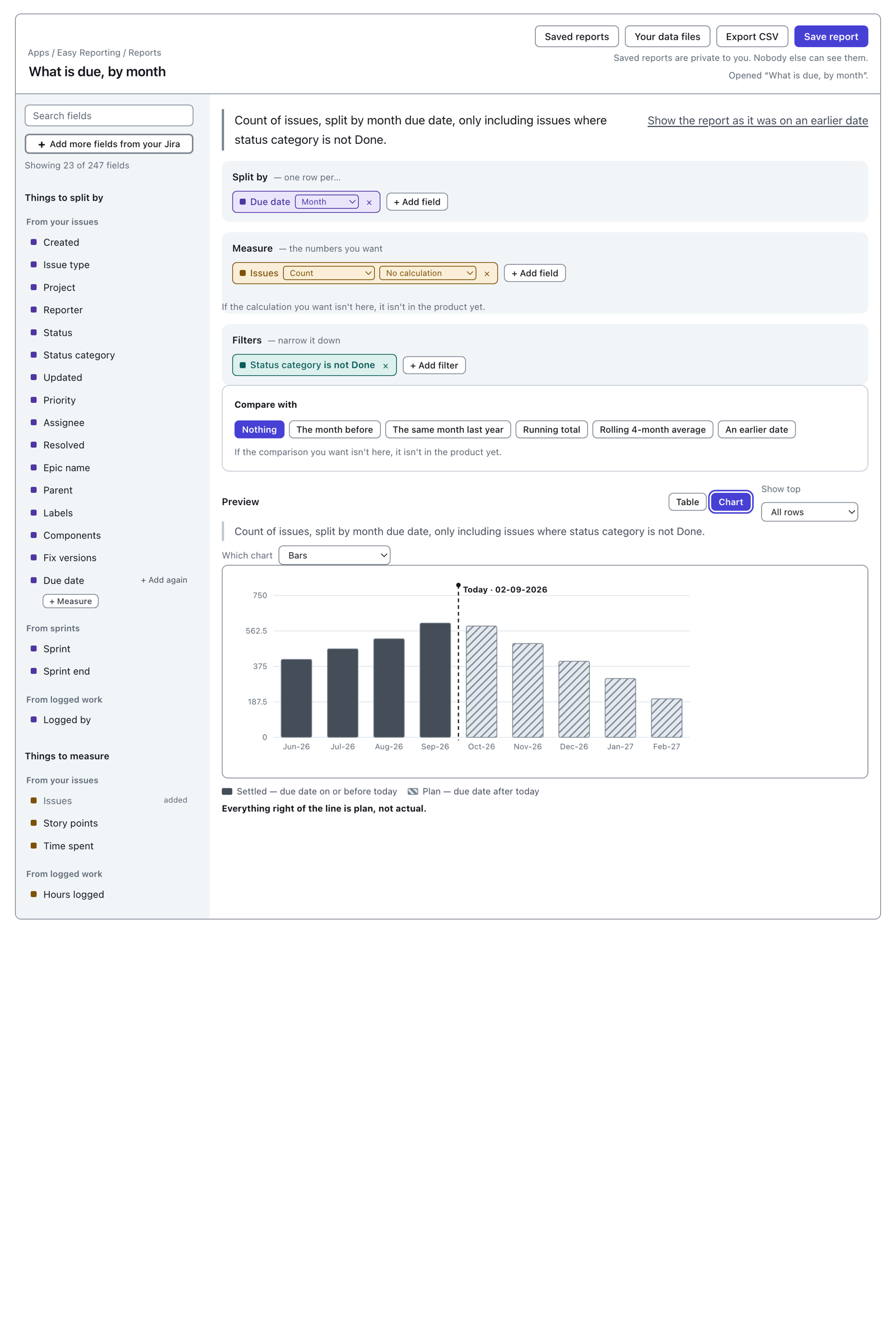
Some dates look forward: due date, sprint end, a fix version's release date. Split by one of those and part of the chart is a plan rather than a record.
 View full size
Bars come first for these, not a line. The difference between what happened and what is planned is carried by the fill of the bar, and only a bar has a fill. A line is still offered, and it dashes its plan half instead.
The rule falls before the first month that is entirely ahead of today. The month today sits inside is drawn solid, because part of it has already happened.
Everything right of the line is plan, not actual. The chart says so underneath, and it is worth repeating out loud before anybody treats a forecast as a result.
Two things worth knowing about a chart
Issues with nothing in the field you split by keep their place. They are drawn and labelled (no value), exactly as the table shows them.
A chart draws the rows on the page you are looking at, not the whole report. Past a hundred rows it says so above the picture: "This chart shows the first 100 rows. There are more." Page on and the note changes to name the rows it is actually drawing.
A chart has no Total row. Switch back to Table for the total.
Where to go next
- How to build a tabular report — sorting, column order, "Show top" and the Total row.
- How to build a report — the shelves, from the start.
- Export to CSV — the numbers, not the picture.