How to build a report
Easy Reporting lives in the Jira apps menu. Open Apps, then Easy Reporting for Jira.
The builder does not open empty. It opens on a report that already works, and everything you do next is an edit to it.
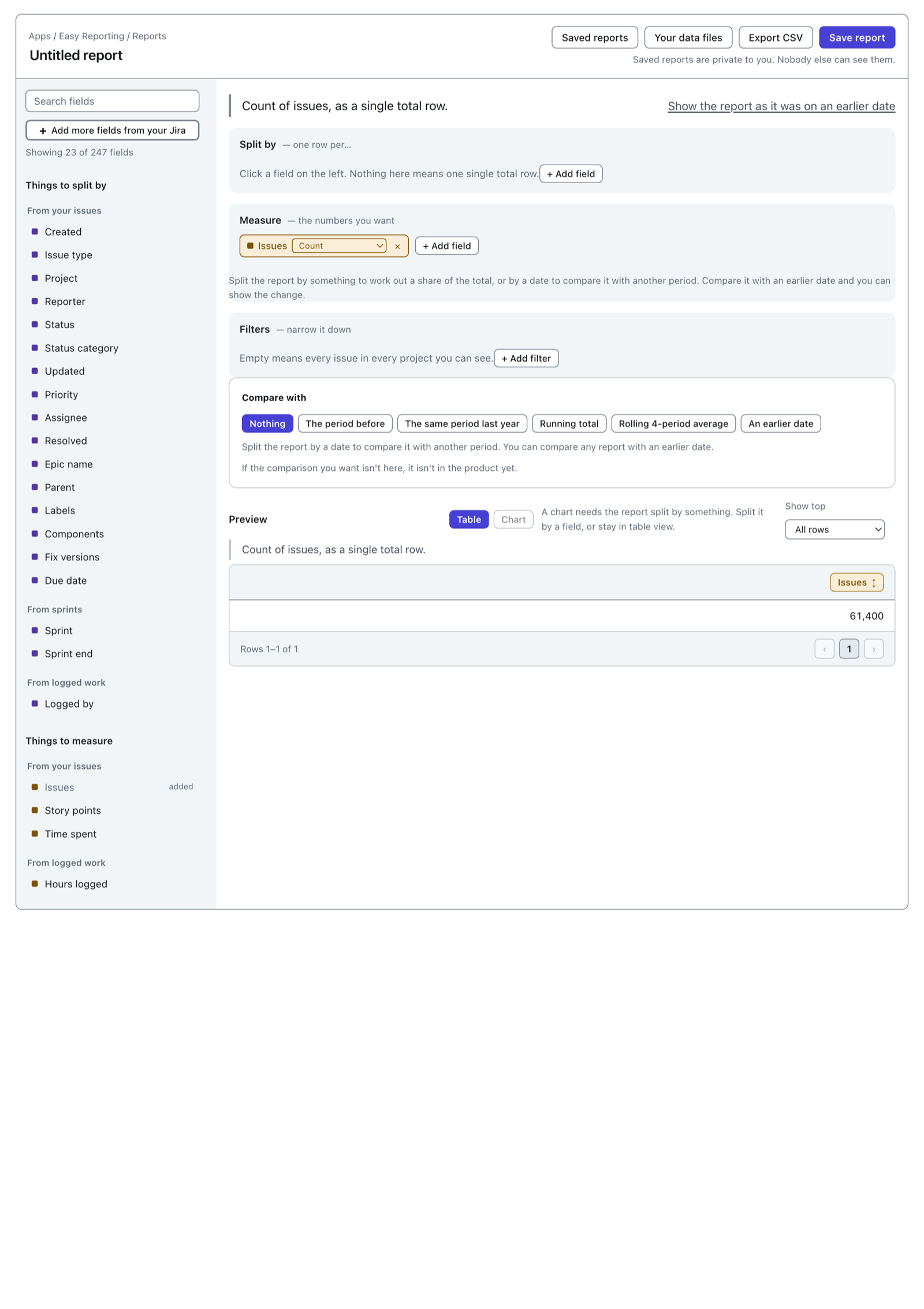
What is on the screen
 View full size
There are three parts to it.
The field list, on the left. It opens on the fields most people use and says how many you have in total, like "Showing 23 of 247 fields". The search box searches all of them, not just the ones on screen. Add more fields from your Jira puts any of the rest into the list, and the report remembers them.
The three shelves, in the middle. Split by decides what one row of the table is. Measure holds the numbers. Filters decides which issues get counted at all.
The sentence, above the shelves. It describes the report in plain English and rewrites itself every time you change something. Read it back before you send the numbers to anybody.
The report on screen is a count of every issue you can see, as one row. That is what the Measure shelf already holding Issues means.
A report only counts issues you can open in Jira. A colleague with access to more projects will get a bigger number out of the same report.
Put a field on Split by
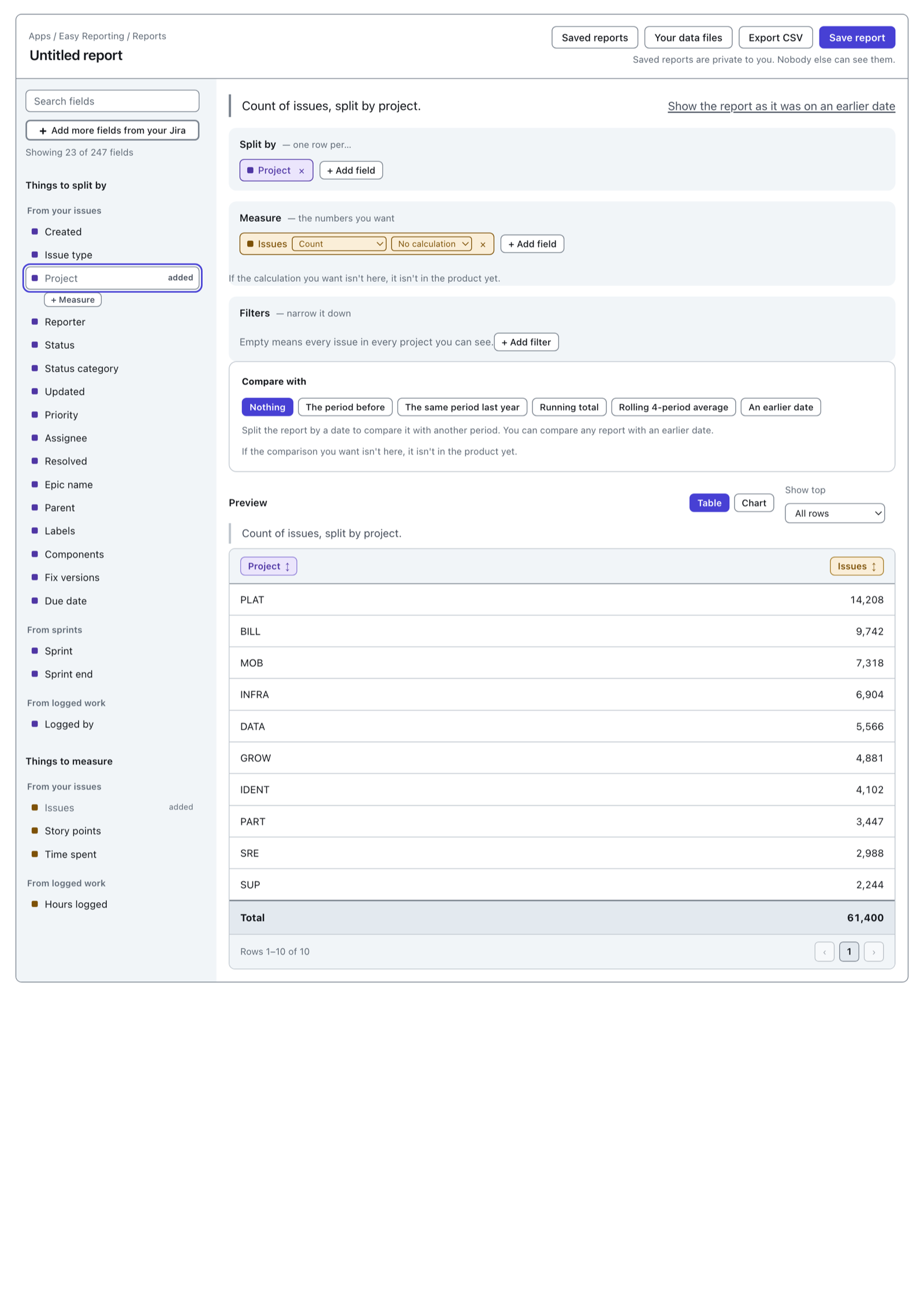
Click Project in the field list.
 View full size
One row per project, and a Total row underneath. The sentence has caught up: "Count of issues, split by project."
Nothing was pressed to make that happen. The report runs itself a moment after you stop clicking, and it runs again after every change.
The Project row in the field list now reads added, with a small + Measure button beside it. That second button counts how many different projects there are rather than splitting by them. It is there for later.
Put a number on Measure
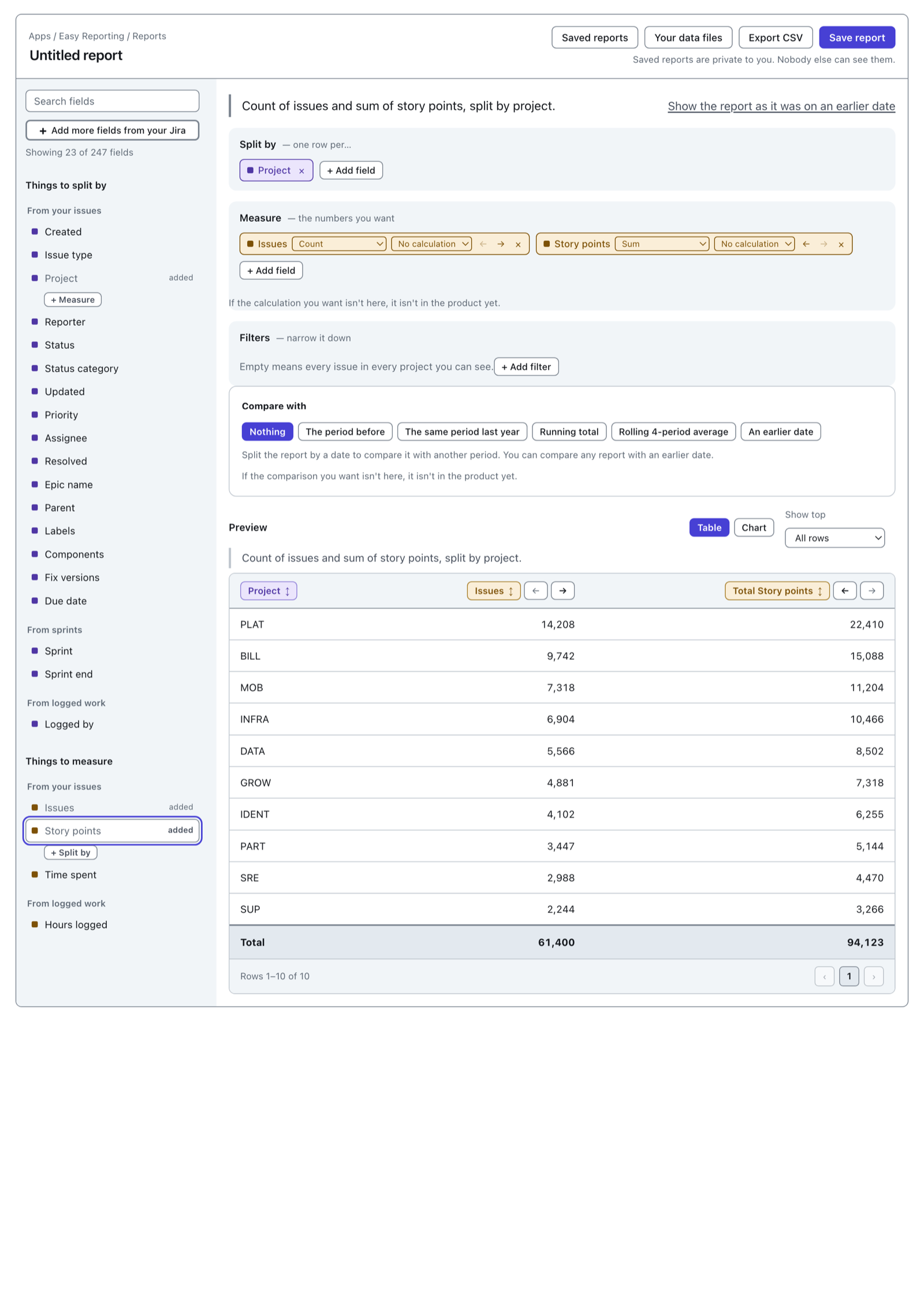
Story points is a number, so the field list has it under Things to measure. Click it.
 View full size
Story points arrives as a sum, because story points add up. So the column is called Total Story points, and the sentence gains "and sum of story points".
Every pill on the Measure shelf carries a dropdown: Count, Sum, Average, Median, Smallest, Largest and 95th percentile. Change it and the column heading changes with it. A sum becomes "Total Story points"; a median becomes "Median Story points".
Narrow it down with Filters
An empty Filters shelf means every issue in every project you can see.
Press + Add filter, pick a field, and choose how to compare it. Fields with a short list of values give you a list to tick, with a count beside each one. Fields that hold something different on nearly every issue give you a box to type in instead.
The filter lands as a pill, and the sentence picks it up: "only including issues where status is Done or Released".
If the Measure shelf is empty
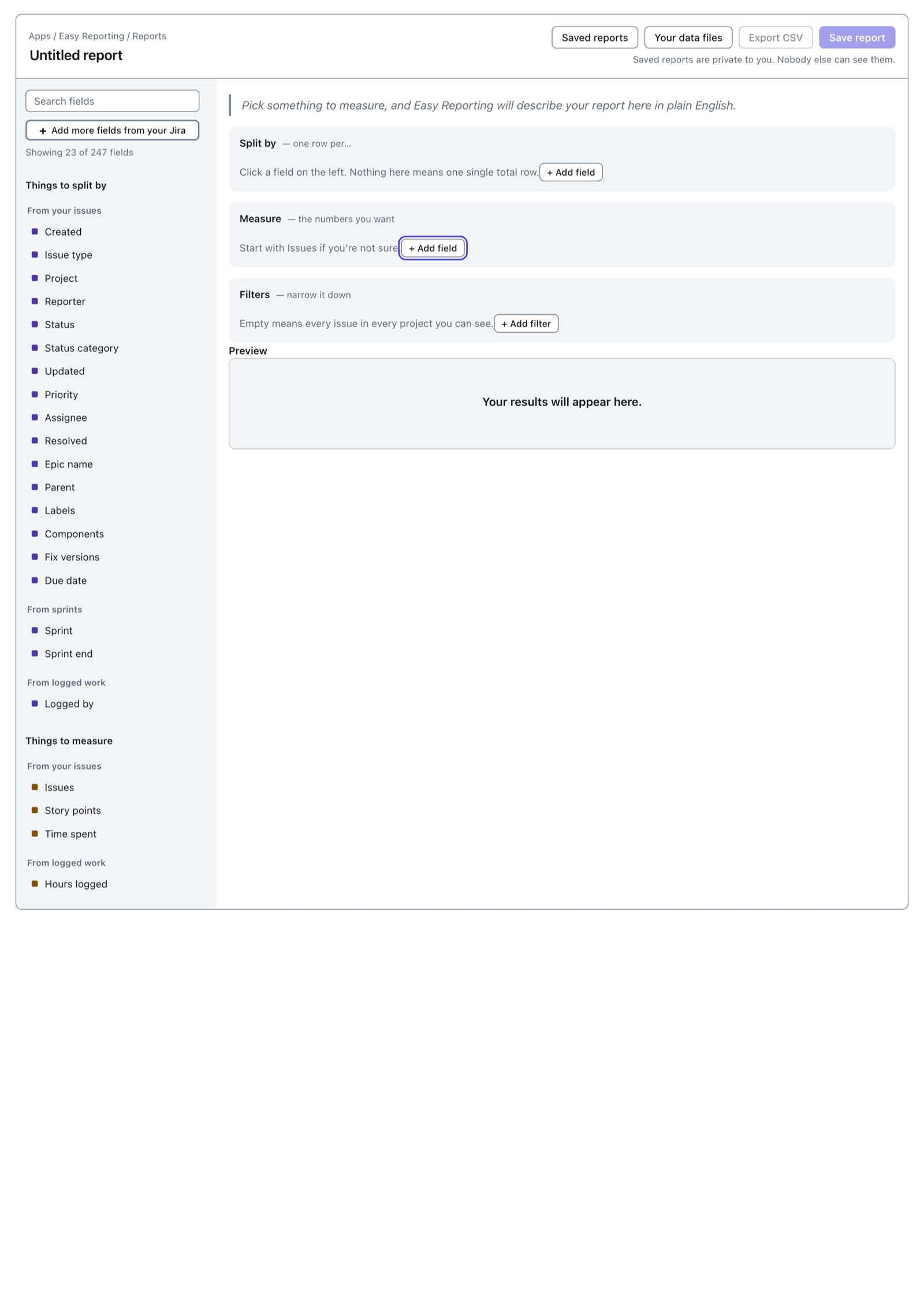
Take the last number off Measure and there is nothing to run.
 View full size
The sentence goes back to "Pick something to measure, and Easy Reporting will describe your report here in plain English." Nothing is broken. Put a field back on Measure and the numbers come straight back.
Save it
Type a name in the box at the top of the page, then press Save report.
Saved reports are private to you. Nobody else can see them.
Where to go next
- How to build a chart — draw the same numbers as bars or a line.
- How to build a tabular report — sorting, column order, "Show top" and what the Total row means.
- Join your own data — put your budgets, rosters and cost centres in the same table.
- Export to CSV — take the numbers somewhere else.