Export a report to CSV
Every report can be downloaded as a CSV file and opened in Excel, Numbers, Google Sheets or anything else that reads a spreadsheet.
The file carries the numbers and a short block of notes saying where they came from. The numbers are written as plain digits so a spreadsheet can add them up.
Download the report you are looking at
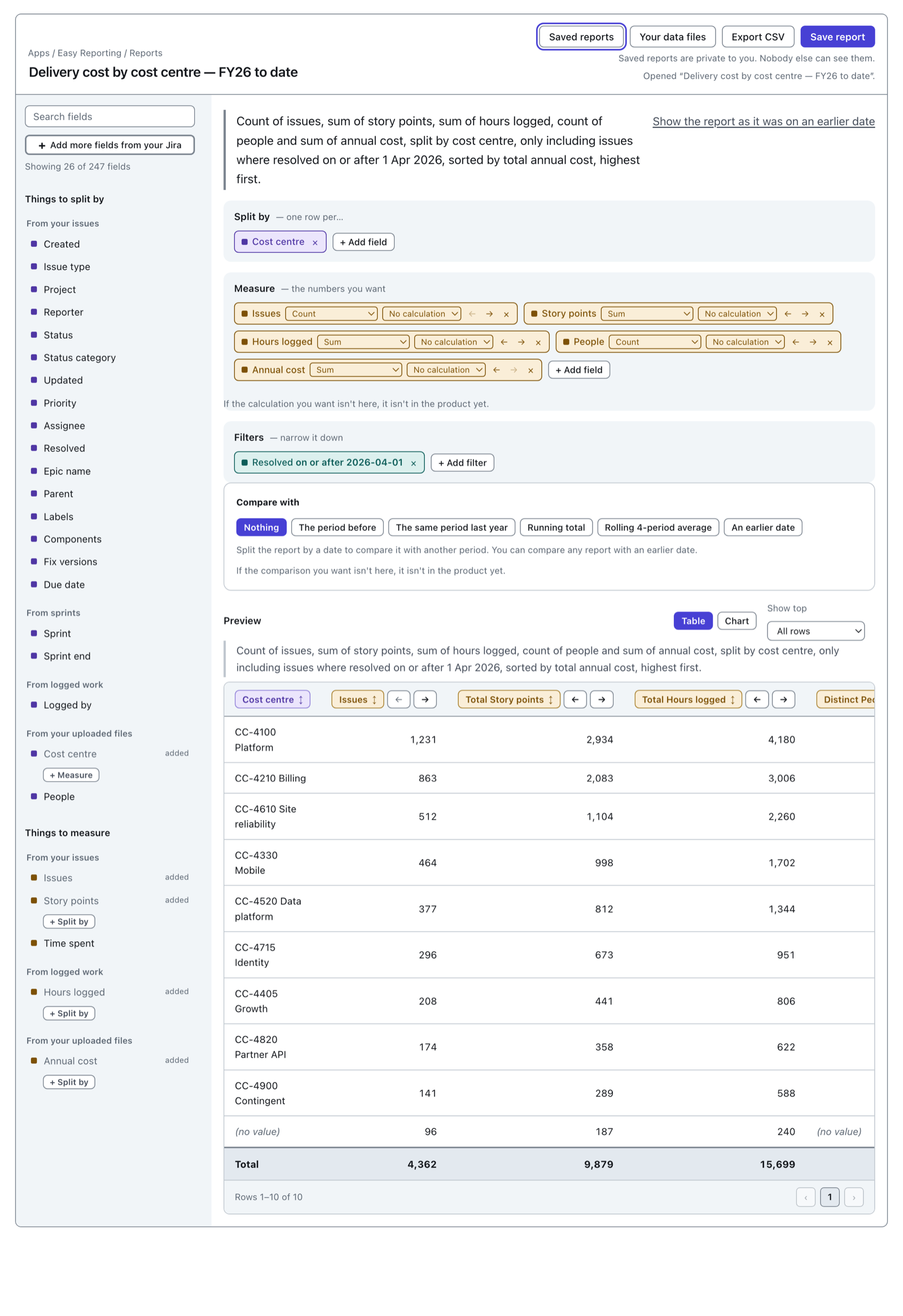
Build or open a report, then press Export CSV at the top.
 View full size
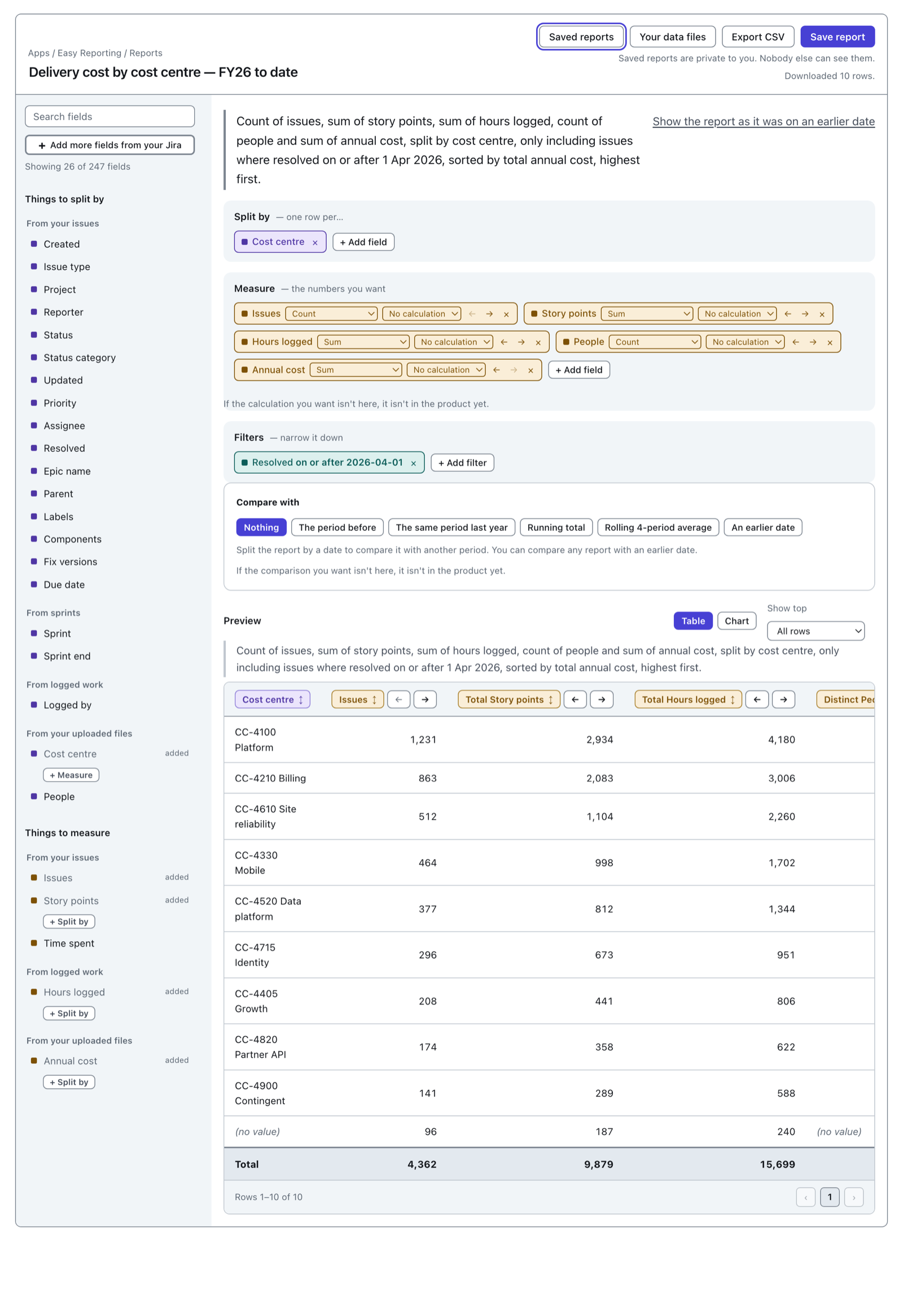
The line under the buttons counts as it works — Preparing your download… 10 rows so far. — and finishes with Downloaded 10 rows. Then your browser saves the file.
 View full size
Two things worth knowing about what you get.
It is the whole report, not the page you can see. The table on screen shows a page at a time. The file is a fresh run of the same report rather than a copy of that page, so it holds every row the report returns.
The file is named after the report. Whatever is in the title box at the top left becomes the filename. Rename the report before you export and the download is named to match.
If the report is very large, the download may stop with This report is too big to download in one go. Add a filter and try again. Nothing is saved when that happens. Narrow the report down and press it again.
What is at the top of the file
The file opens with a block of lines starting with #. They are notes, not data. Most import tools can skip lines beginning with #; if yours does not, they sit above your column headings where they are easy to delete.
# Easy Reporting export — "Delivery cost by cost centre — FY26 to date"
# Site: acme.atlassian.net
# Generated: 2026-09-02 09:14 UTC by Jo Harker (jo.harker@acme.example)
# Rows: 10 of 10 (not paginated)
#
# Split by: Cost centre
# Measure: Issues (count of distinct issues), Total Story points (sum), Total Hours logged (sum), Distinct People (count of distinct people), Total Annual cost (sum)
# Only include: Resolved on or after 2026-04-01
#
# Empty values are written as (no value) and are never dropped.
#
# Money in £: Total Annual cost. Written here as plain numbers.
This block exists because a file of bare numbers is unreadable three weeks later on somebody else's laptop. Which filters were on? Was anything left out? Was there a warning at the time? The answers are written into the file, so they travel with it.
Line by line:
- The site, the day and the person. Which Jira it came from, when it was made, and who pressed the button.
- Rows. How many rows are in the file. A report big enough to hit the row limit leaves this line out and carries a warning instead. A count that is really a floor, printed as a total, is worse than no count at all.
- Split by and the line after it, listing what was measured and how — a sum, an average, a count of distinct things.
- Only include. One line per filter, written out literally, with dates as
2026-04-01rather than as words. The live sentence in the builder is for reading while you build; this is for somebody who was not there. - Compared with and As it was on, when the report used them.
- Warnings, if the report carried any. They are copied in full.
- Empty values, and Money, both described below.
The first line carries the report's name, and so does the filename, so a file that has been moved or renamed still says what it is.
A warning on screen is a warning in the file. If a report warns that a total is inflated, that warning is written into this block. Do not strip these lines out before you pass the file on. A figure read months later with its caveat removed looks exactly like a figure nobody had any doubts about.
What is in the numbers
Under the # block come the column headings, and then the rows.
Cost centre,Issues,Total Story points,Total Hours logged,Distinct People,Total Annual cost
CC-4100 Platform,1231,2934,4180,24,1840000
CC-4210 Billing,863,2083,3006,15,1120000
(no value),96,187,240,(no value),(no value)
Numbers are plain digits. No thousands separators and no currency symbol, ever. On screen that cost centre reads £1,840,000; in the file it is 1840000.
That is deliberate. 1,840,000 is split across two columns by a spreadsheet, or quoted and read as text. £1,840,000 is text however it is quoted. A column of text is a column nobody can sum, and summing it is the one thing somebody exporting a budget wants to do. So the file carries the value and the screen does the formatting.
Which columns are money, and in what, is said in the # block instead — where a person reads it and no spreadsheet parses it.
Empty cells say (no value). They are never dropped and never turned into a zero. An empty cell and a zero are different answers.
Dates are written the way your site writes them, the same as on screen. Time logged is written as 14d 6h rather than as a count of seconds.
There is no Total row. A total written underneath the data is just another data row to a spreadsheet, so it would double every sum and skew every average the moment anybody made a pivot table. The screen shows the total; your spreadsheet works out its own.
One last thing you may notice. A cell whose text starts with =, +, - or @ is written with an apostrophe in front of it. Those characters start a formula in Excel and Sheets, and a Jira summary is whatever somebody typed. The apostrophe makes the spreadsheet show the text instead of running it. Numbers never get one, so -5 is still -5.
Download a result a schedule kept
A report on a schedule keeps the answer it produced each time. Those results can be downloaded too, and this is how you keep a figure permanently.
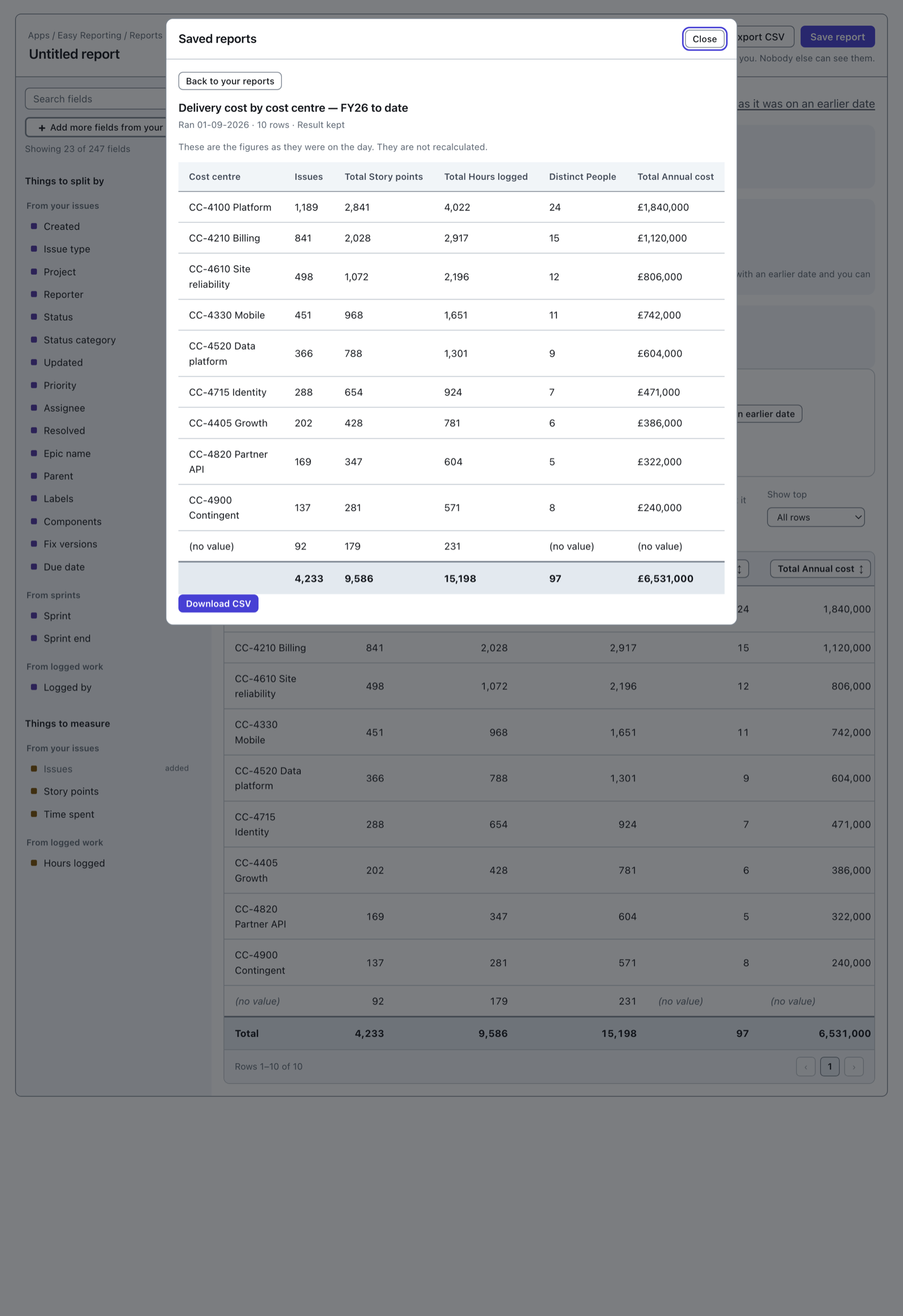
Press Saved reports, then the button on the row naming the kept results. Every result carries Download CSV. Opening one gives you the same button under the table.
 View full size
These figures are not recalculated. They are what the report said on the day it ran, which is the reason to keep them.
Download the ones that matter before deleting anything, because deleting a scheduled report deletes its kept results and they cannot be built again. See Delete a report or a file.