How to build a tabular report
The table is the report. A chart is a view of it, an export is a copy of it, and everything below is how you get the table itself into the shape you want.
If you have not built a report yet, start with how to build a report.
Sort by clicking a heading
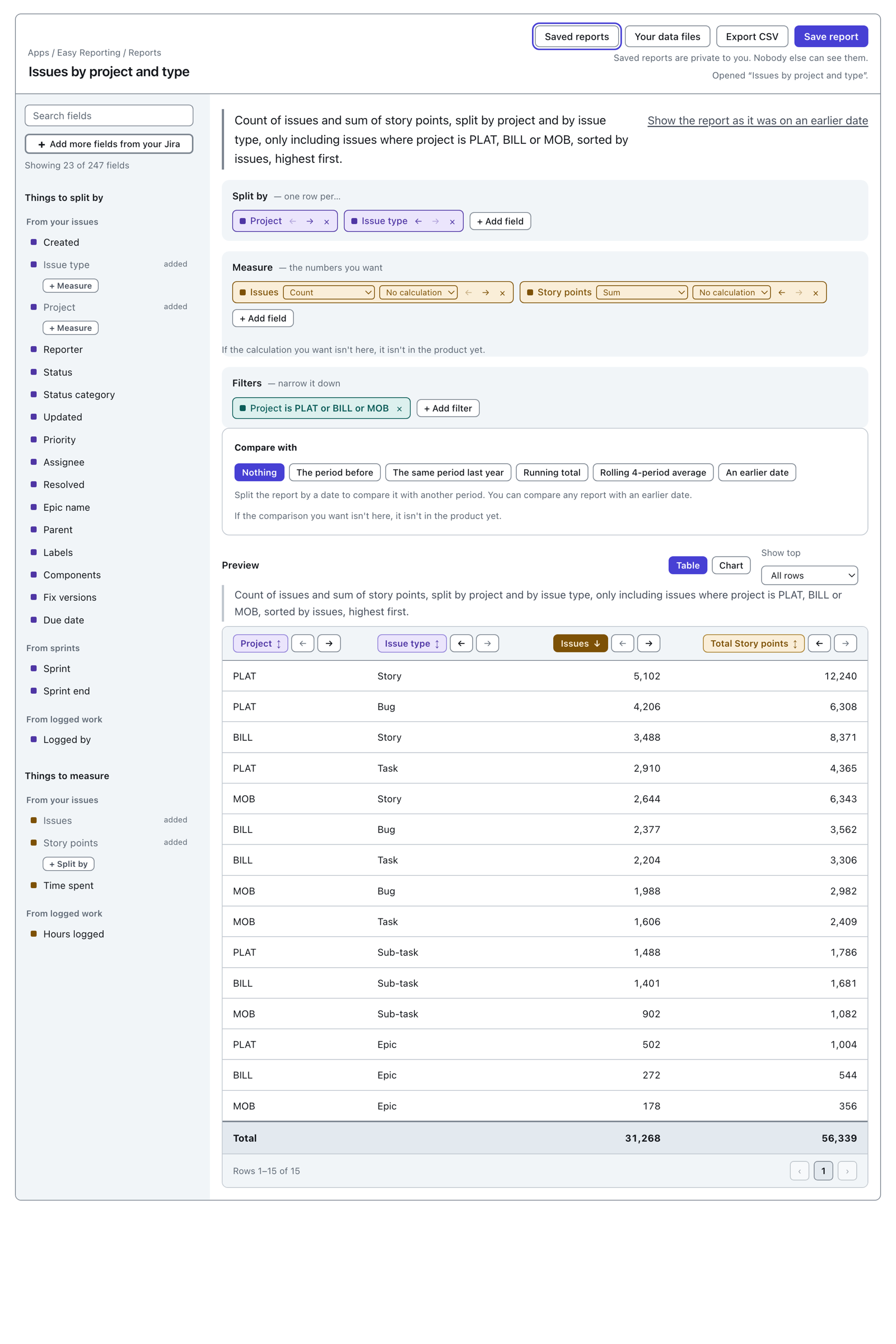
Every column heading is a button. Click it to sort by that column.
 View full size
Three clicks, in a cycle.
- The first click sorts. A column of numbers starts with the largest at the top, because that is the question people ask next. A column you split by starts at A.
- The second click turns it round.
- The third click takes the sort off, and the report goes back to its own order.
The heading doing the sorting shows a solid arrow. The others show a faint up-and-down arrow, which is how you can tell they are controls too.
Only one column sorts at a time. Clicking a second heading hands the sort over rather than adding a second one.
One column cannot be sorted. A calculated column is worked out after the report runs, so its heading says so: This column is worked out after the report runs, so it cannot be sorted yet.
Move a column
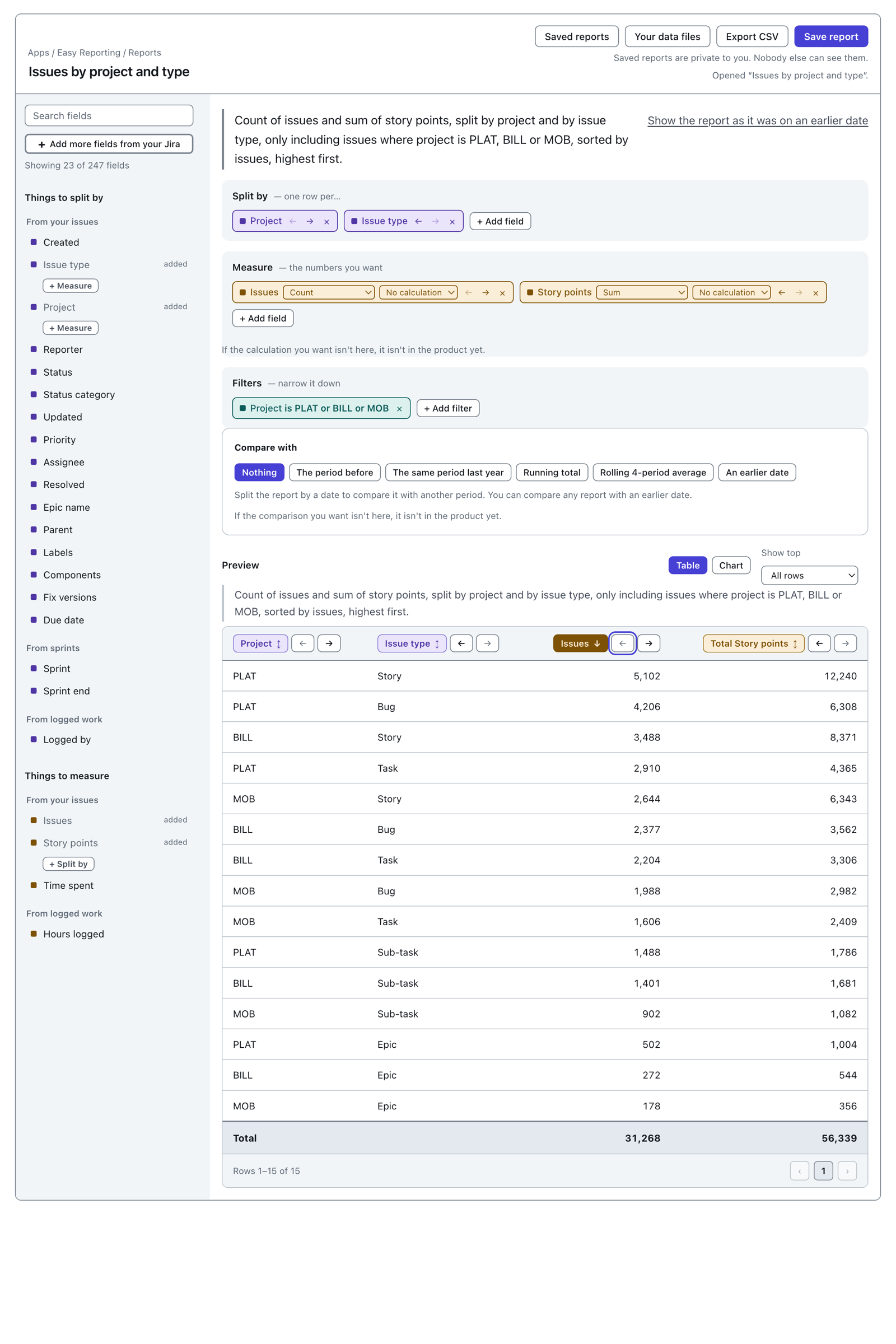
A heading carries a ← and a → when there is another column it could swap with. They move that column one place.
 View full size
Columns move within their own group. The columns you split by are always the leading run, and the numbers always follow them. Press an arrow at the edge of a run and it tells you where you are instead of doing nothing:
Issues is the first number. The numbers always come after the columns you split by.
The pills on the shelves carry the same two arrows whenever there is more than one on that shelf. Moving a pill and moving its column come to the same thing.
Show only the top rows
Show top sits next to the Table and Chart buttons. It offers All rows, 5, 10, 25, 50 and 100.
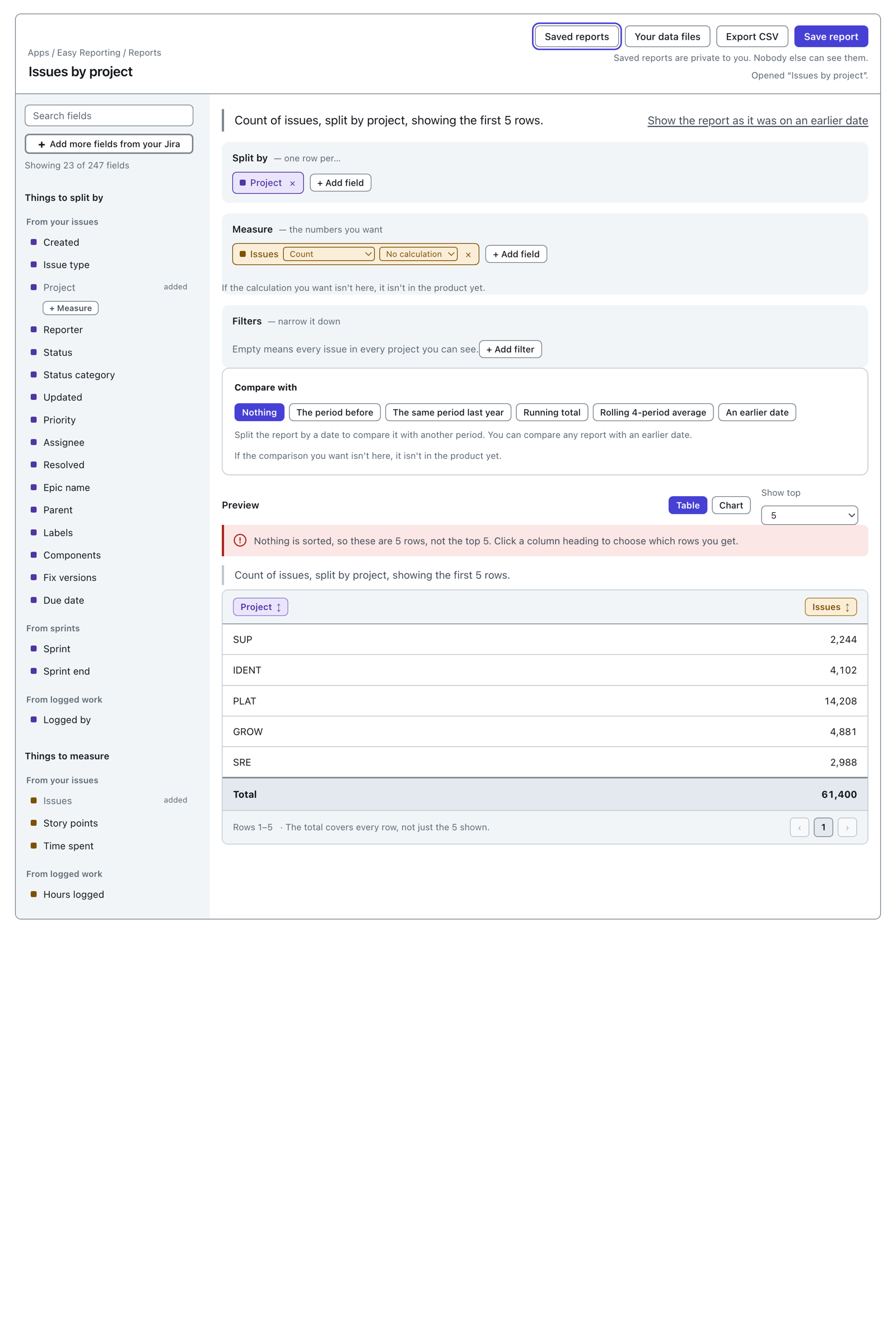
It needs a sort to mean anything.
 View full size
Set a limit with nothing sorted and you get five rows, not the top five. They are whichever five came back first. The warning above the table says so: Nothing is sorted, so these are 5 rows, not the top 5. Click a column heading to choose which rows you get.
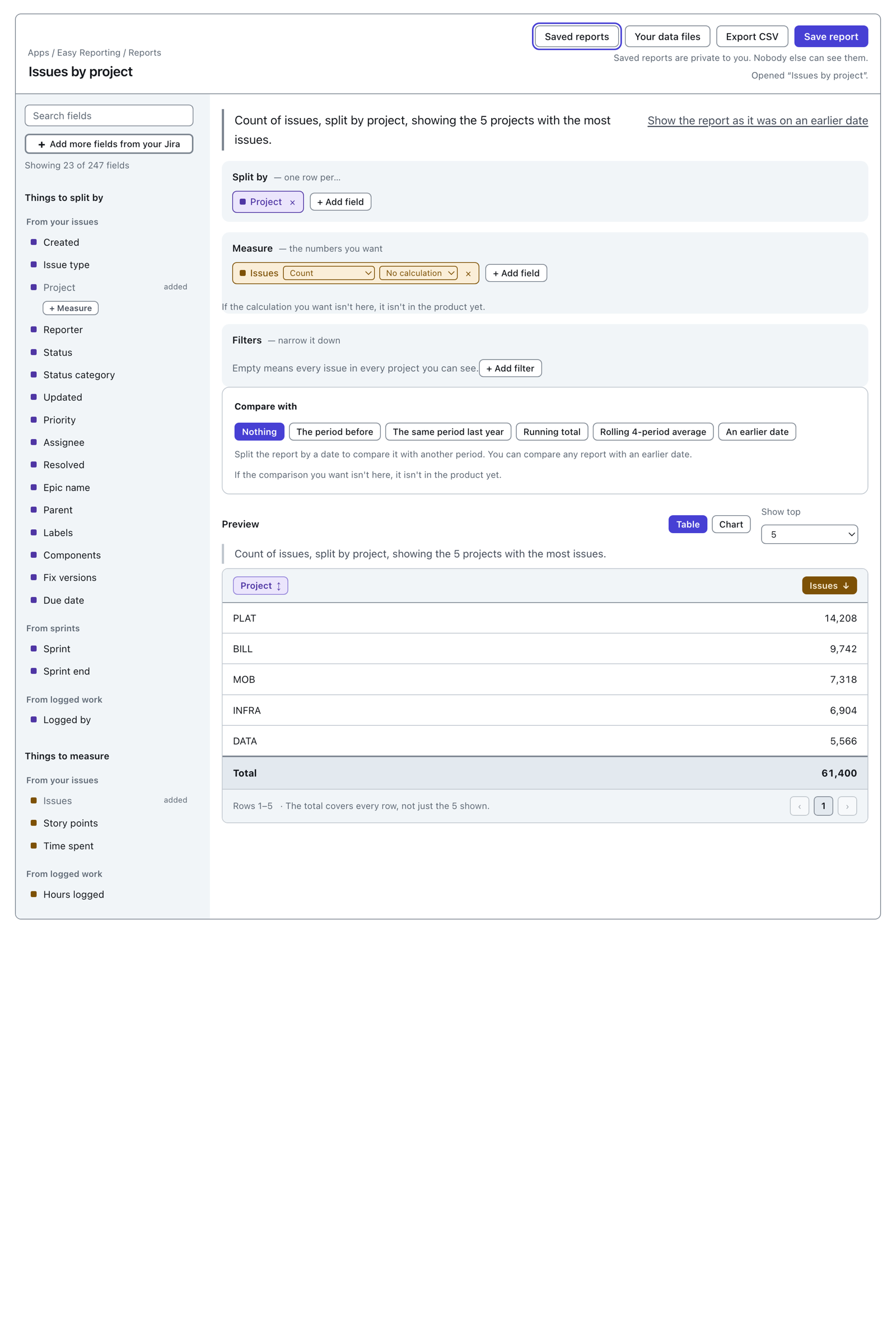
Click the Issues heading and it becomes what you meant.
 View full size
The sentence above the shelves changes with it, from "showing the first 5 rows" to "showing the 5 projects with the most issues". That is the fastest way to check you got what you asked for.
What the Total row means
The Total row is worked out over every row of the report, not over the rows on your screen. So it does not change as you page through, and it does not shrink when you set a limit. Both shots above show a Total of 61,400 over five visible rows, and the footer says why: The total covers every row, not just the 5 shown.
Two other things about it.
A total is not always a sum. A median column's total is the median of the whole report, worked out over every issue rather than averaged from the numbers above it.
A cell that has no total is left blank, never filled with a zero. That is every column you split by, because a project name has no total.
Rows with no value
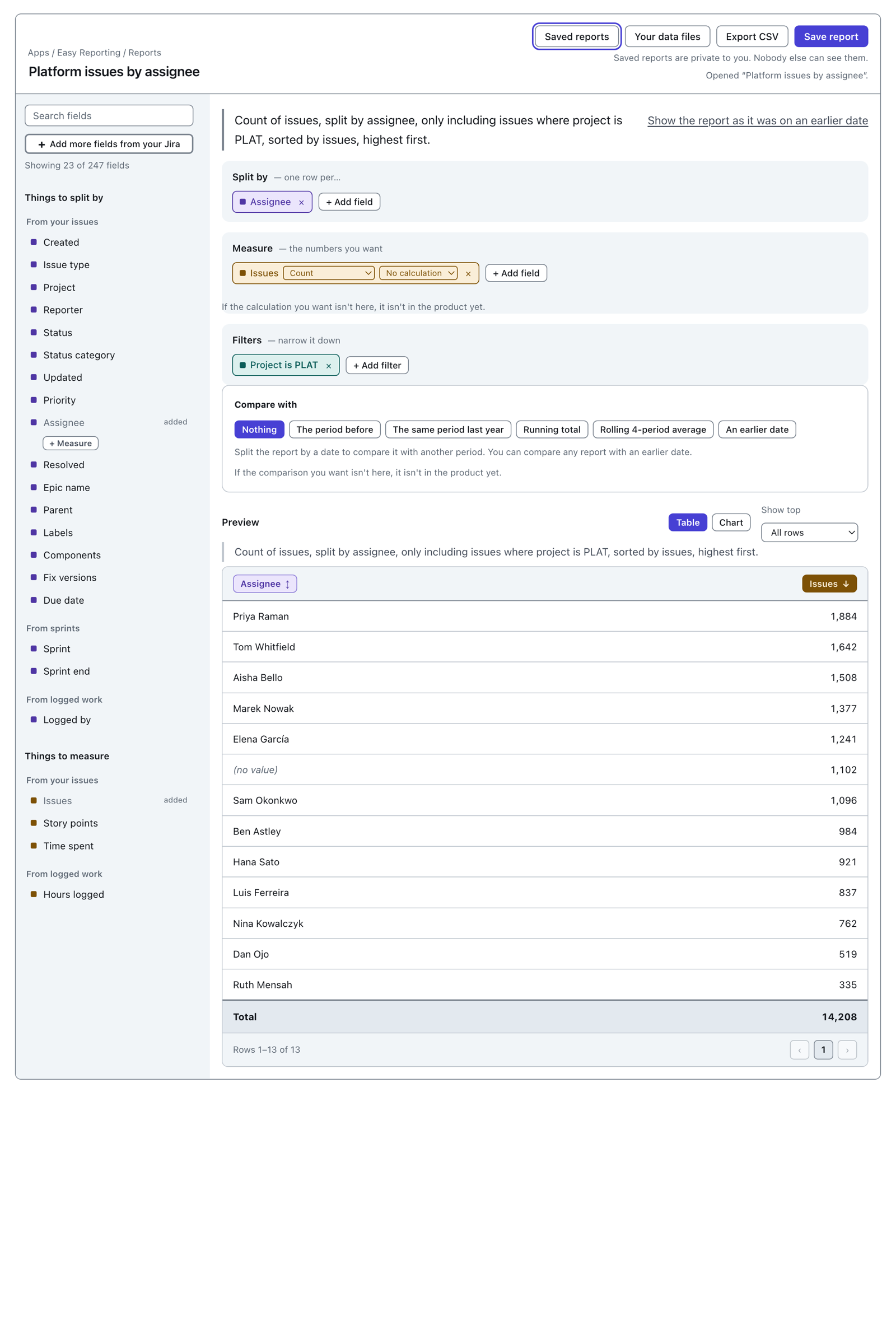
An issue with nothing in the field you split by is not dropped. It gets a row of its own, labelled (no value).
 View full size
The
(no value)row is counted in the Total like any other row. If you leave it out of a figure you quote, your figure will not match the Total on the same screen.
It sorts like any other row too. On this report 1,102 unassigned issues put it sixth, in among the people.
To leave those issues out, filter them out on purpose. Every field offers Is empty and Is not empty in the Filters editor.
When the rows add up to more than the Total
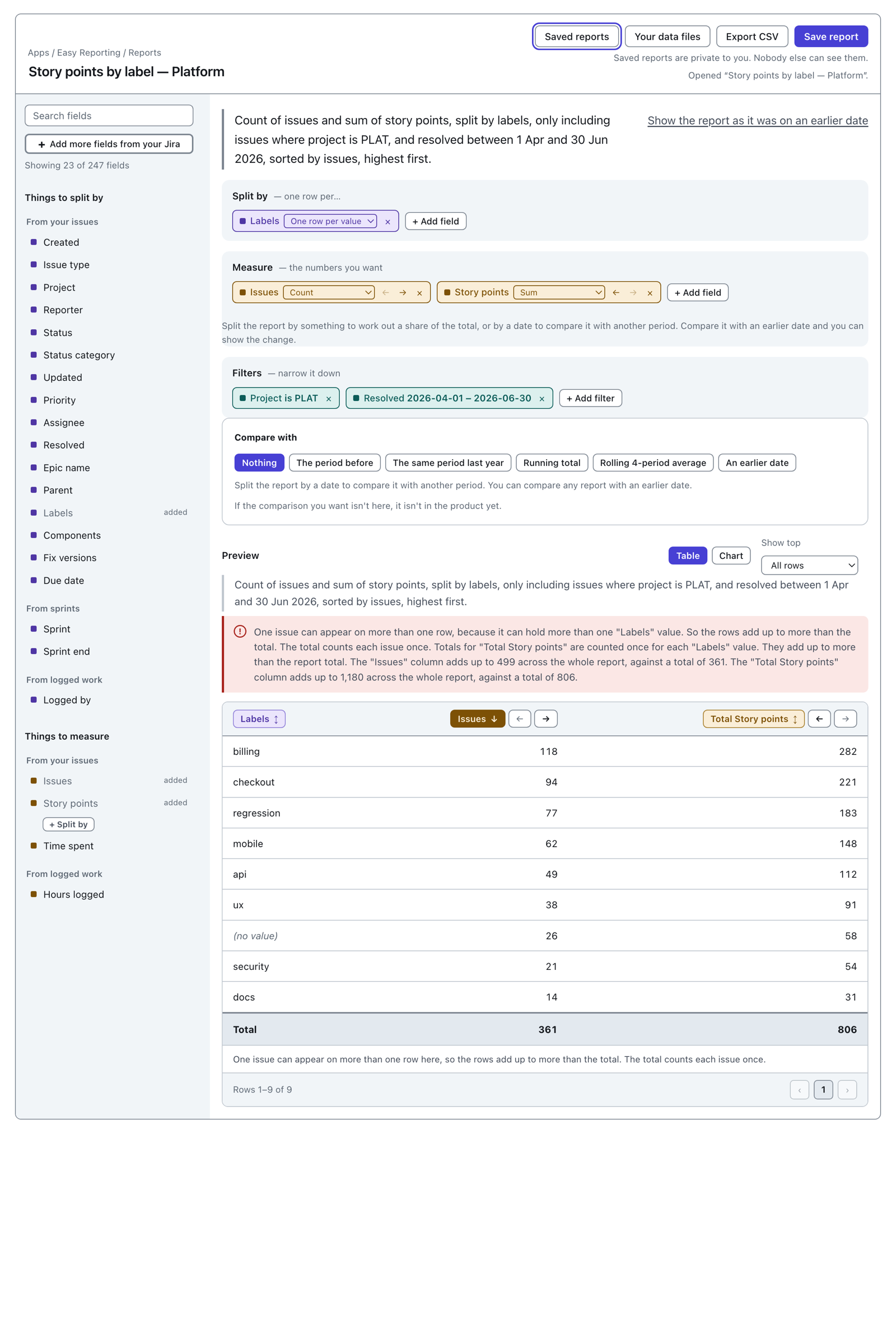
Some fields hold several values at once: labels, components, fix versions, sprints. Split by one of those and an issue with three labels lands on three rows.
 View full size
The columns add up to more than the Total, and both numbers are right. The Issues column here comes to 499 because issues are counted once per label. The Total reads 361 because it counts each issue once.
The warning above the table says it in full, with the figures:
One issue can appear on more than one row, because it can hold more than one "Labels" value. So the rows add up to more than the total. The total counts each issue once. Totals for "Total Story points" are counted once for each "Labels" value. They add up to more than the report total. The "Issues" column adds up to 499 across the whole report, against a total of 361. The "Total Story points" column adds up to 1,180 across the whole report, against a total of 806.
The pill on the Split by shelf carries a dropdown with two settings. One row per value is what you are looking at. Grouped together makes one row for each combination of labels instead, so an issue tagged billing and checkout has its own row and is counted once.
Reading the footer
The footer under the table carries the row range, and the total number of rows when we know it: "Rows 1–15 of 15". The arrows page through a hundred rows at a time.
Two things it adds when they apply.
The total covers every row, not just the 5 shown. — you have a limit on.
A day here means 24 hours. In Jira a working day is 8 hours. — a column holds a length of time.
Where to go next
- How to build a chart — the same numbers as bars or a line.
- Join your own data — put your own columns in this table.
- Export to CSV — take the table away with you.