Delete a report or a file
Three things you might want rid of, and all three are one press away.
- A saved report you no longer want.
- An uploaded file you no longer want, or uploaded by mistake.
- Somebody's access to a file you uploaded.
Nothing here happens without a confirmation, and every confirmation names what it is about to remove.
Delete a saved report
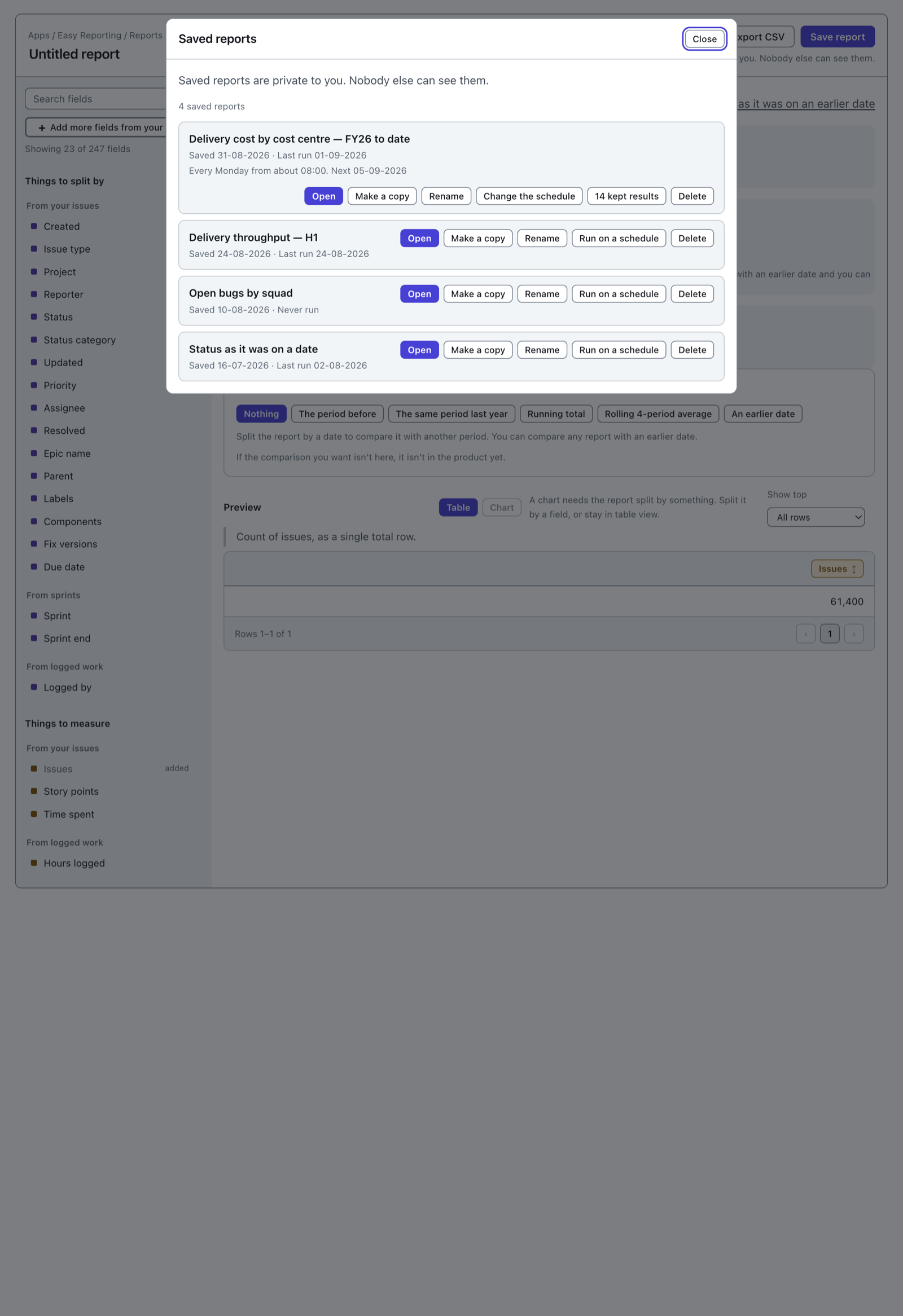
Press Saved reports at the top of the report builder.
 View full size
Saved reports are private to you. Nobody else can see them, so deleting one takes nothing away from anybody else.
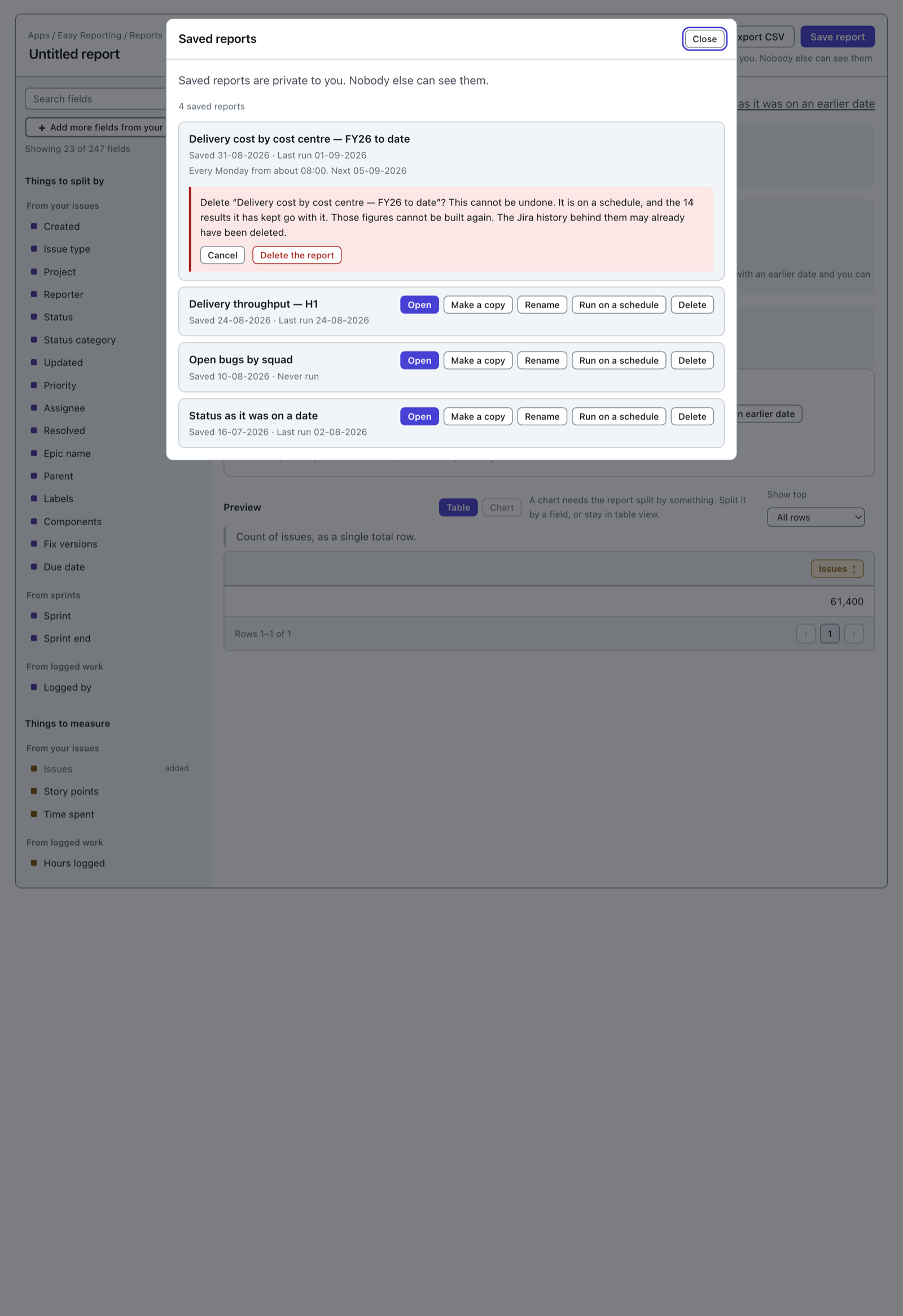
Press Delete on the row you want gone. A question appears in its place, with Cancel and Delete the report. Nothing happens until you press the second one.
If the report is on a schedule
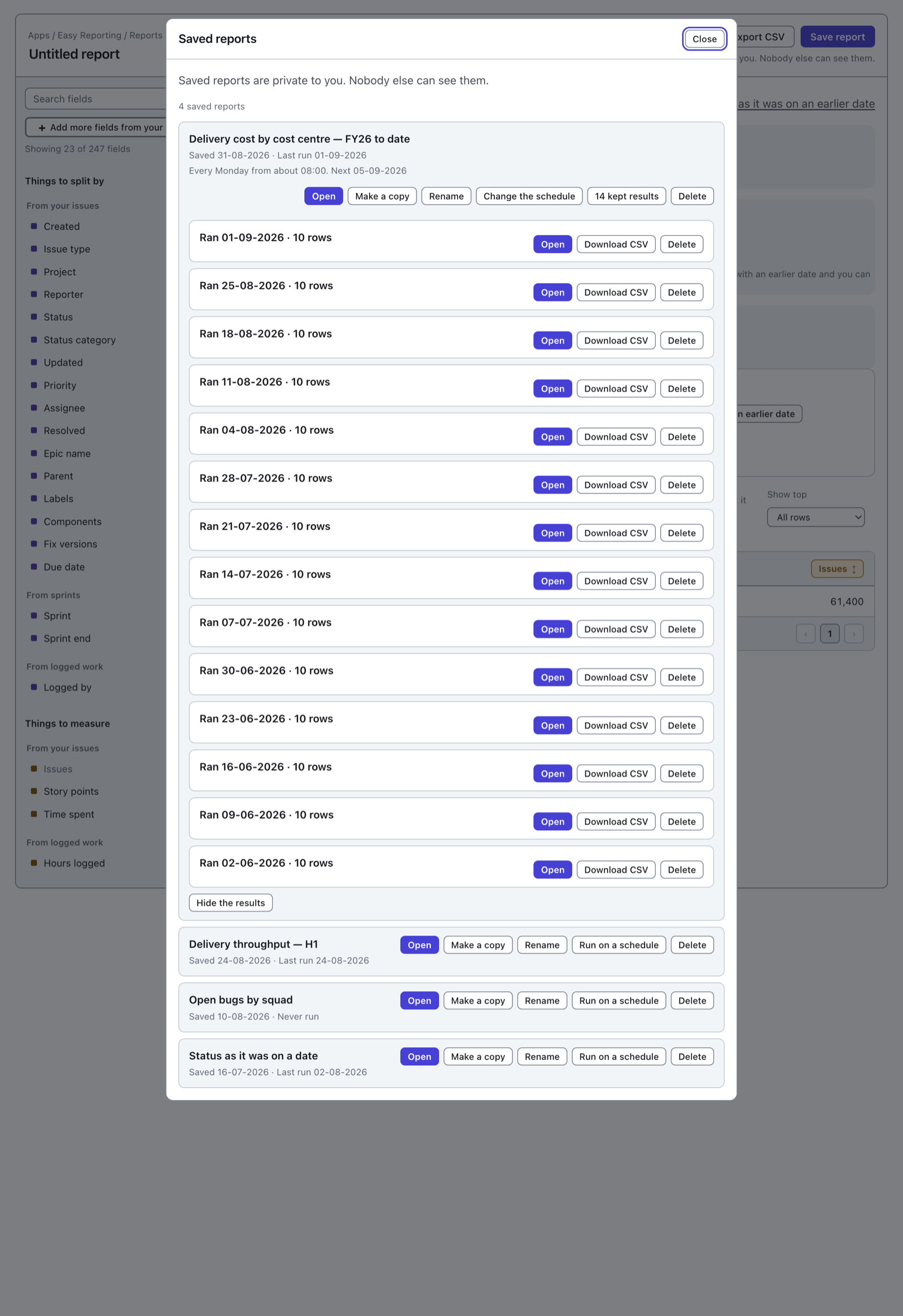
A report that runs on a schedule keeps the answer it produced each time. Those kept results are the reason schedules exist: they hold figures from further back than the twelve months of history the app stores.
 View full size
Deleting the report deletes them too. The confirmation says so, and says it before the press.
 View full size
Kept results cannot be built again. A live report is rebuilt from Jira every time you open it, so deleting one costs you the setup and nothing else. A kept result is different. It holds figures from a day the app may no longer have the history for, because history older than twelve months is deleted. Once a kept result is gone there is no way back to that number. If you only want the report to stop running, take it off its schedule instead — but read the next paragraph first.
Taking a report off its schedule also deletes the results it kept. It asks first, and it says so. The report itself stays.
To keep a figure permanently, open the result and press Download CSV before you delete anything. See Export a report to CSV.
Delete an uploaded file
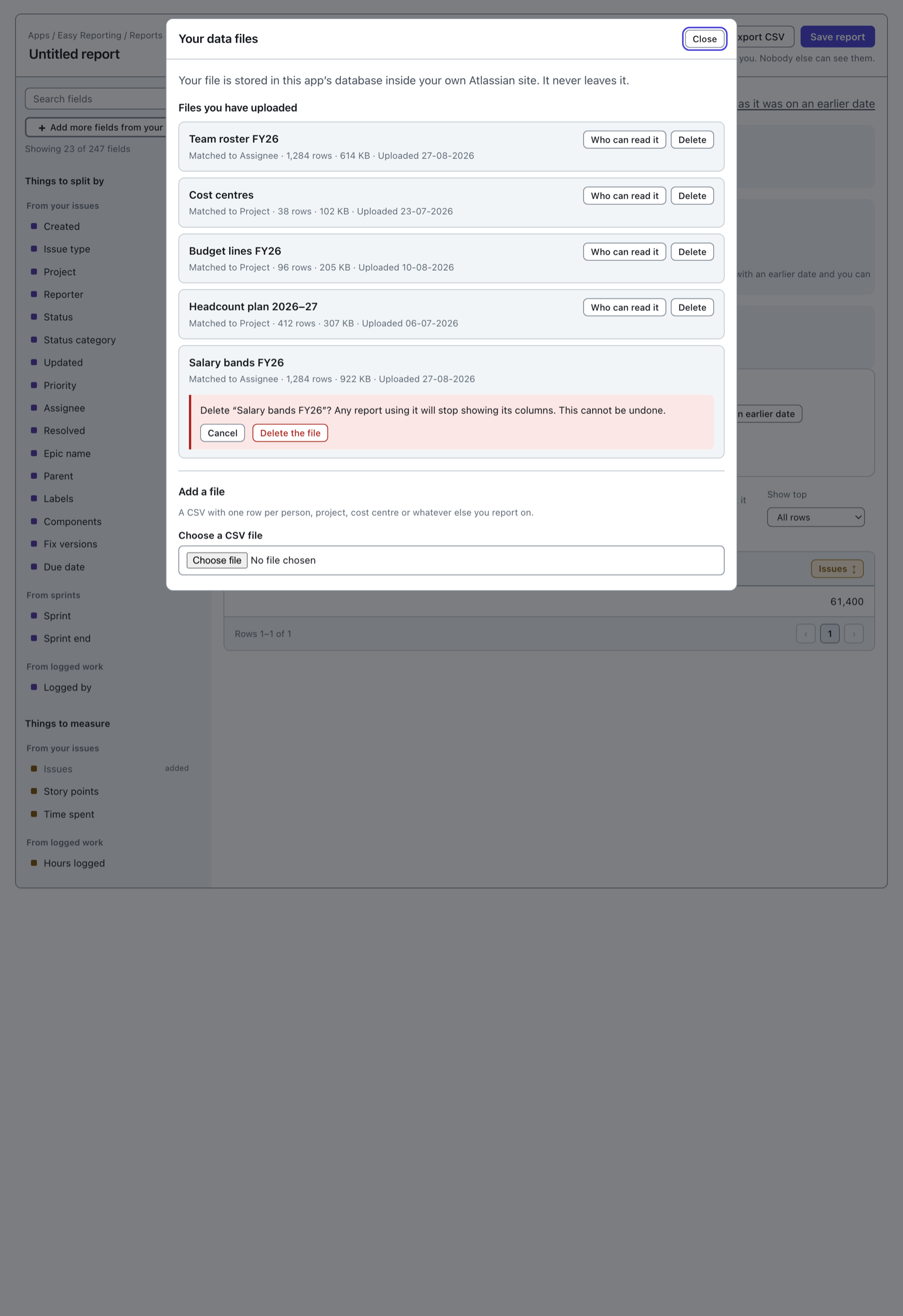
Press Your data files at the top of the report builder, then Delete on the row you want gone.
 View full size
The file's rows go, its columns disappear from the field list, and the space it was using is free again.
Any saved report built on those columns stays saved. It stops showing them, because they are not there any more. If you meant to correct a file rather than remove it, delete it and upload the fixed one — see Join your own data to Jira data.
You can only delete a file you uploaded. A file somebody shared with you stays where it is — ask the person who uploaded it.
Change who can read a file you uploaded
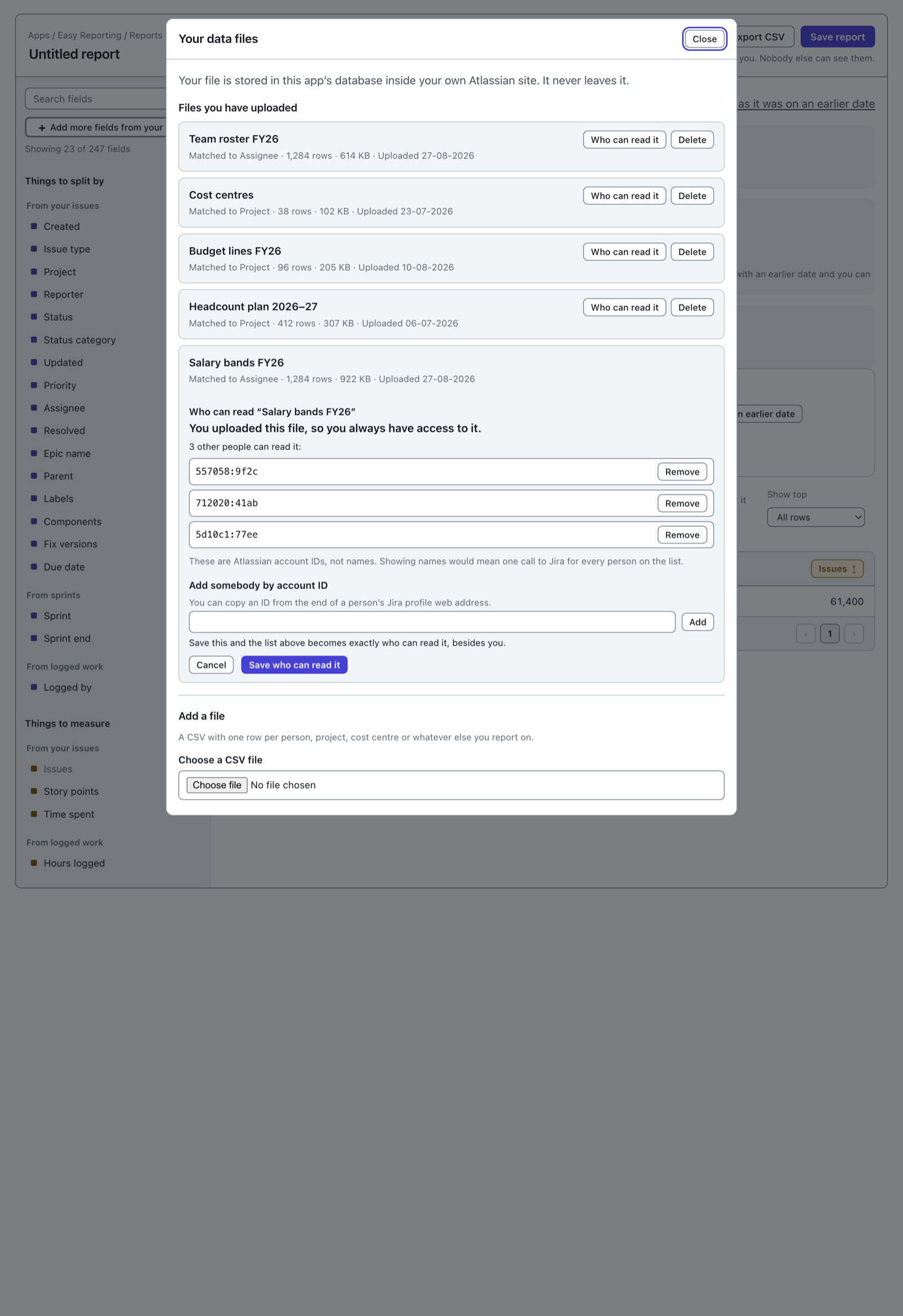
Press Who can read it on the row.
 View full size
The list on screen is who can read it besides you. Press Remove beside anybody who should not. Add somebody by pasting their Atlassian account ID and pressing Add.
Nothing changes until you press Save who can read it. What you save becomes exactly who can read the file, so a name left off the list loses their access.
You uploaded it, so you always have access to it. You cannot remove yourself.
A file somebody else uploaded
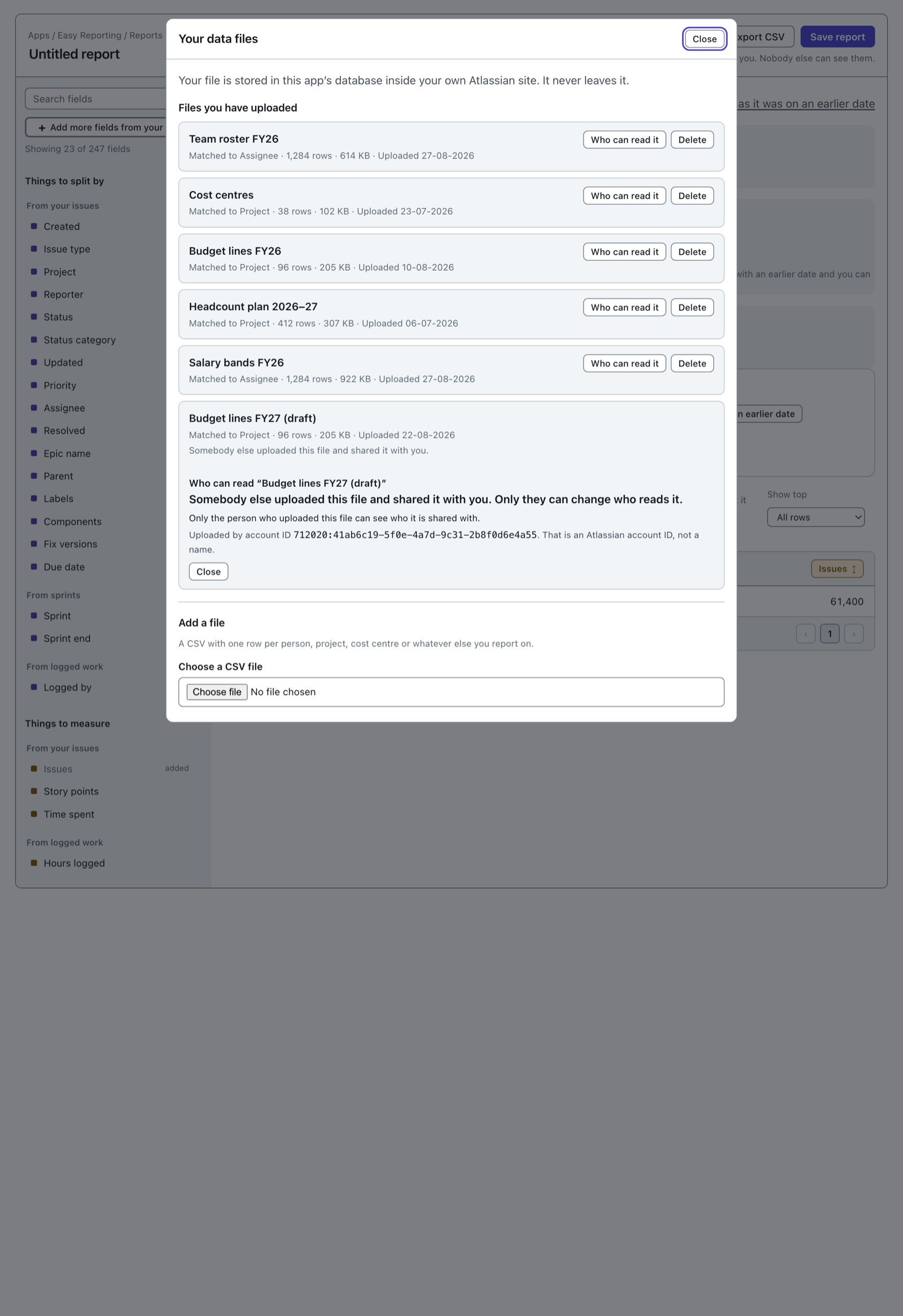
If a file was shared with you, you can build reports on its columns. You cannot change who else reads it, and you cannot see the list.
 View full size
Only the person who uploaded a file can see who it is shared with. That works both ways. Nobody can look up who you have shared your file with either. If you need a file's access changed, ask the person whose account ID the box names.
The screen shows account IDs rather than names throughout. Showing names would mean one call to Jira for every person on the list.