Join your own data to Jira data
Jira knows what your team did. It does not know what a person costs, which cost centre a project belongs to, or what this year's budget was. Upload a spreadsheet of your own and Easy Reporting matches it to your issues, so both sets of numbers sit in one table.
Your file is stored in this app's database inside your own Atlassian site. It never leaves it.
Get your file ready
Save it as a CSV. Put one row per thing: one row per person, one row per project, one row per cost centre.
One column has to hold a value Jira also holds. That is the column each row is matched on, and it is the choice everything else rests on.
Most files match on Project or Assignee.
- Project — the column holds project keys, like
PLATorBILL. Not the project's full name. Spaces and capitals do not matter here:billfindsBILL. - Assignee — the column holds Atlassian account IDs. Not people's names, and not email addresses. You can copy an ID from the end of a person's Jira profile web address.
Give every other column a heading. The headings become the names you see in the report, so write them the way you want to read them.
Three sizes to know about. The page reads a file up to 64 MB. One upload can hold 500,000 rows. Besides the matching column, a file can bring in ten text columns, six number columns and four date columns — mark anything past that "Leave this one out" and upload it again.
Your file is private to you until you share it. Nobody else can read it, and no report anybody else builds can show its columns. You choose who else may read it on the upload screen, and you can change that list afterwards. If you are uploading salaries, read that sentence before you press Upload rather than after.
Open your data files
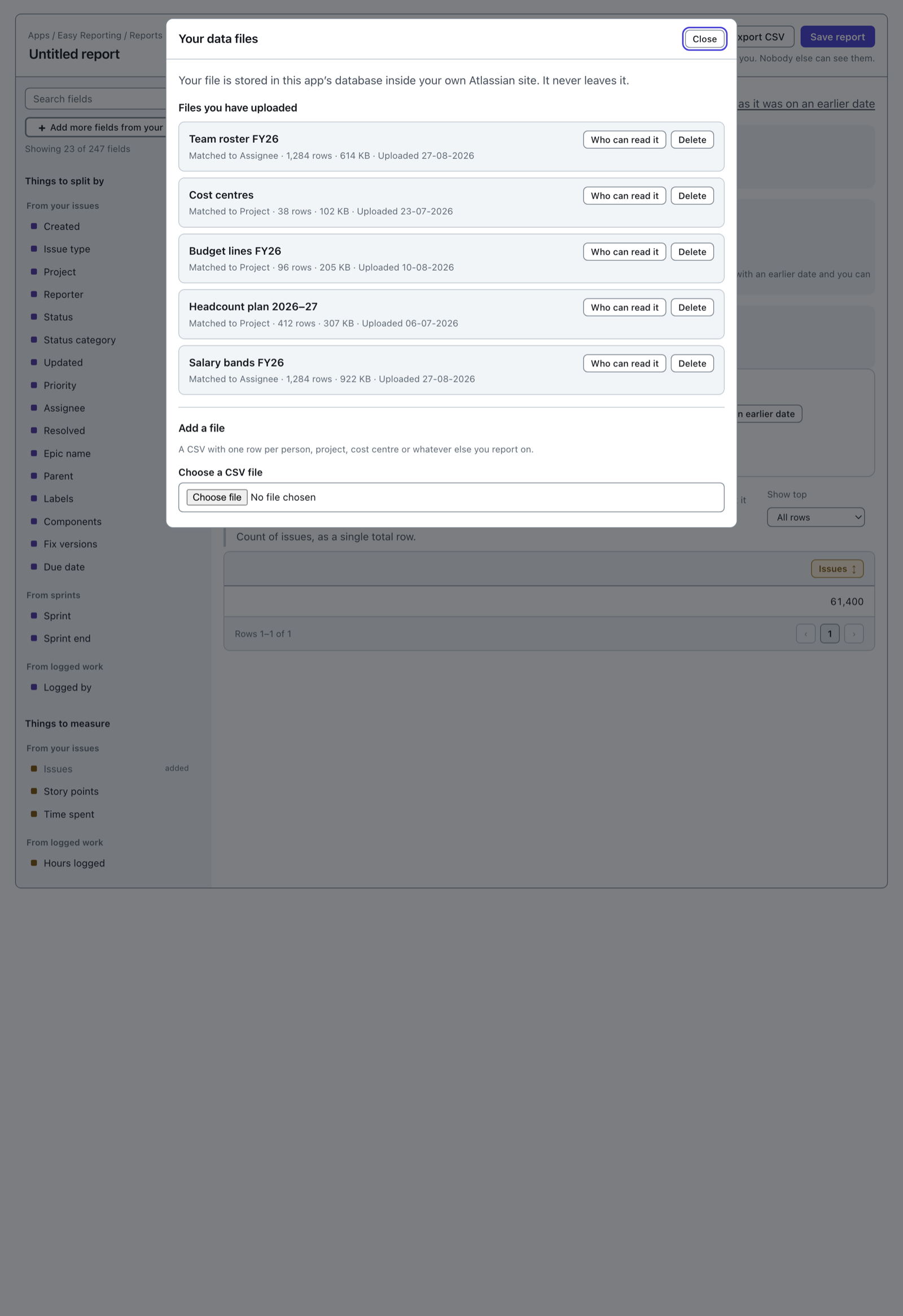
Press Your data files at the top of the report builder.
 View full size
Everything already uploaded is listed at the top. Adding one is the section underneath.
Choose your file
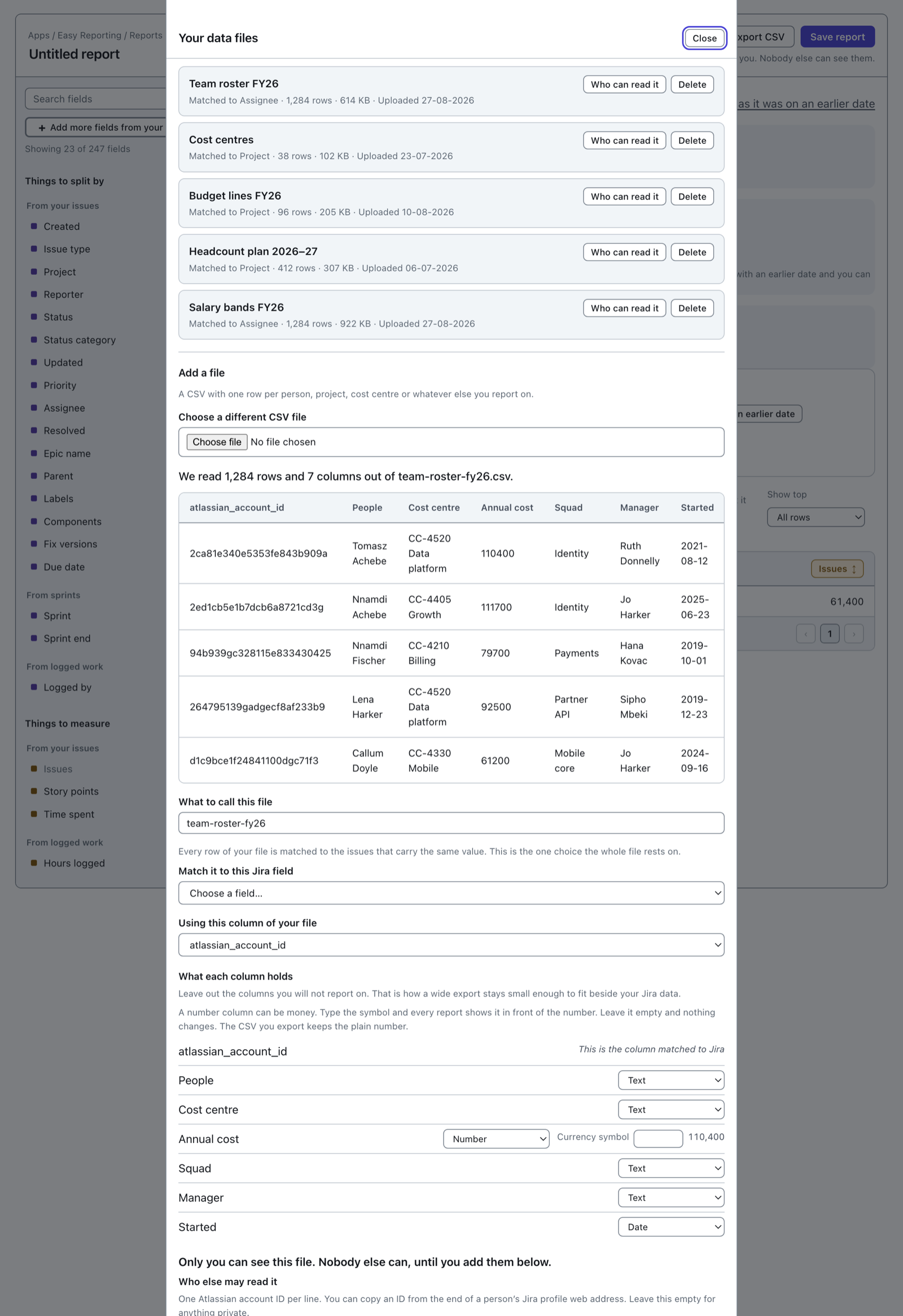
Press Choose a CSV file and pick it.
 View full size
The screen reads the file in your browser and shows you what it found: how many rows, how many columns, and the first five rows. This is where you notice you exported the wrong sheet. Nothing has been sent anywhere yet.
If there is anything odd about the file — a heading that appears twice, a row with more values than the heading row — a box headed Worth knowing about this file lists it. The file still loads; the box is there so you can decide whether it should.
Under the table, What to call this file starts as the filename. Change it to whatever you will recognise in six months.
Say what it matches on
 View full size
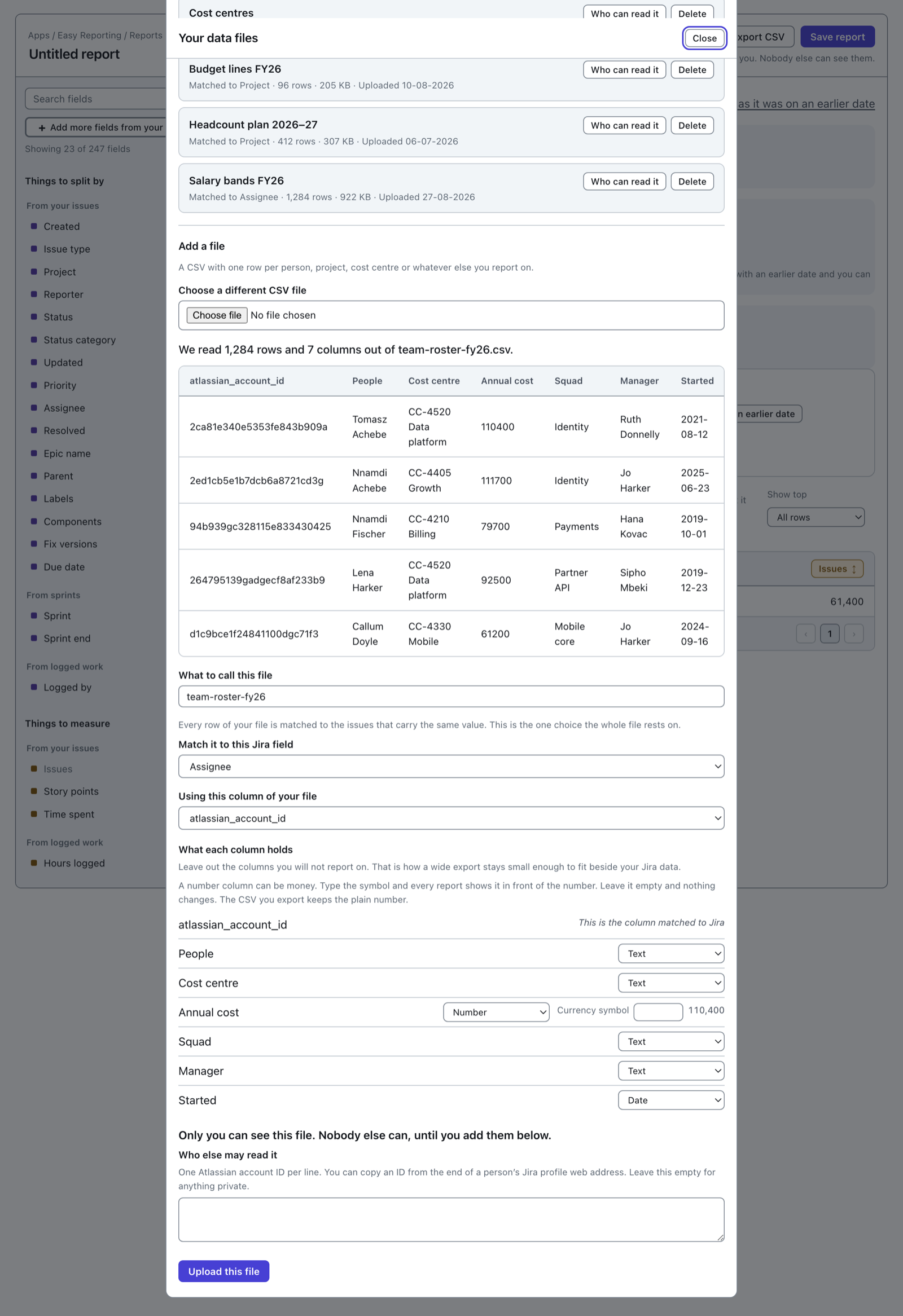
Two answers, and they go together.
Match it to this Jira field is the Jira side. Using this column of your file is your side. A roster of people matches Assignee, using the column of account IDs. A budget sheet matches Project, using the column of project keys.
Get this pair wrong and the file loads perfectly and matches nothing. The result at the end of the upload is what tells you, which is why it is worth reading.
Say what each column holds
 View full size
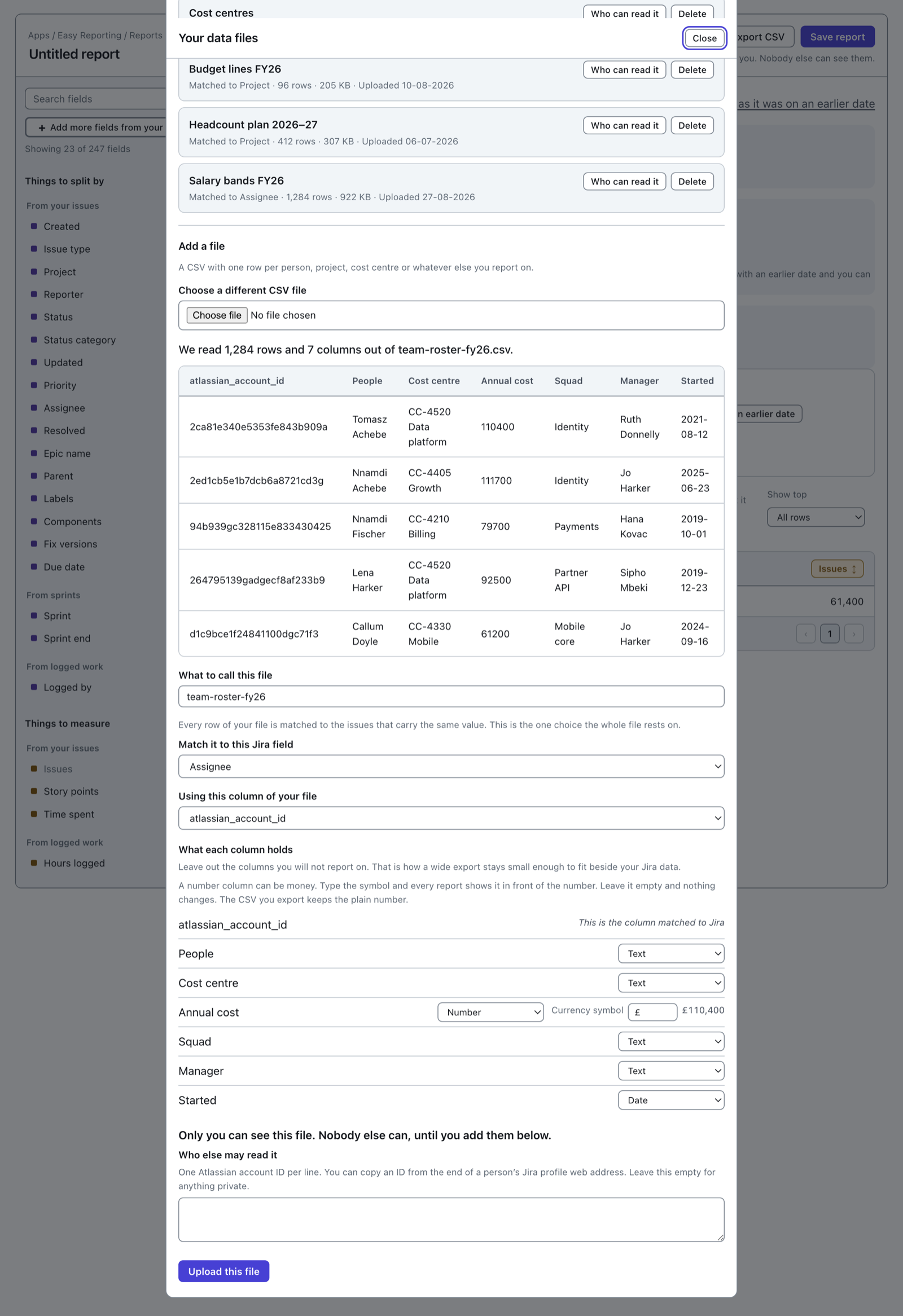
Every column starts with a type worked out from its own values, so a column of figures already says Number and a column of dates already says Date. Change any of them.
Leave this one out is the fourth choice. Use it for the columns you will not report on. That is how a forty-column export stays small enough to sit beside your Jira data.
Money
A number column can be money. Type the symbol into the Currency symbol box and every report shows it in front of the number.
It is a plain text box, so type whatever your money uses: £, $, kr, zł, R$. The preview beside the box shows a real figure out of your own file with your symbol in front, so you can see the result and correct it yourself.
The symbol is only offered on a number column, because it only means anything in front of a number. The CSV you export later keeps the plain digits — see Export a report to CSV.
Say who else may read it
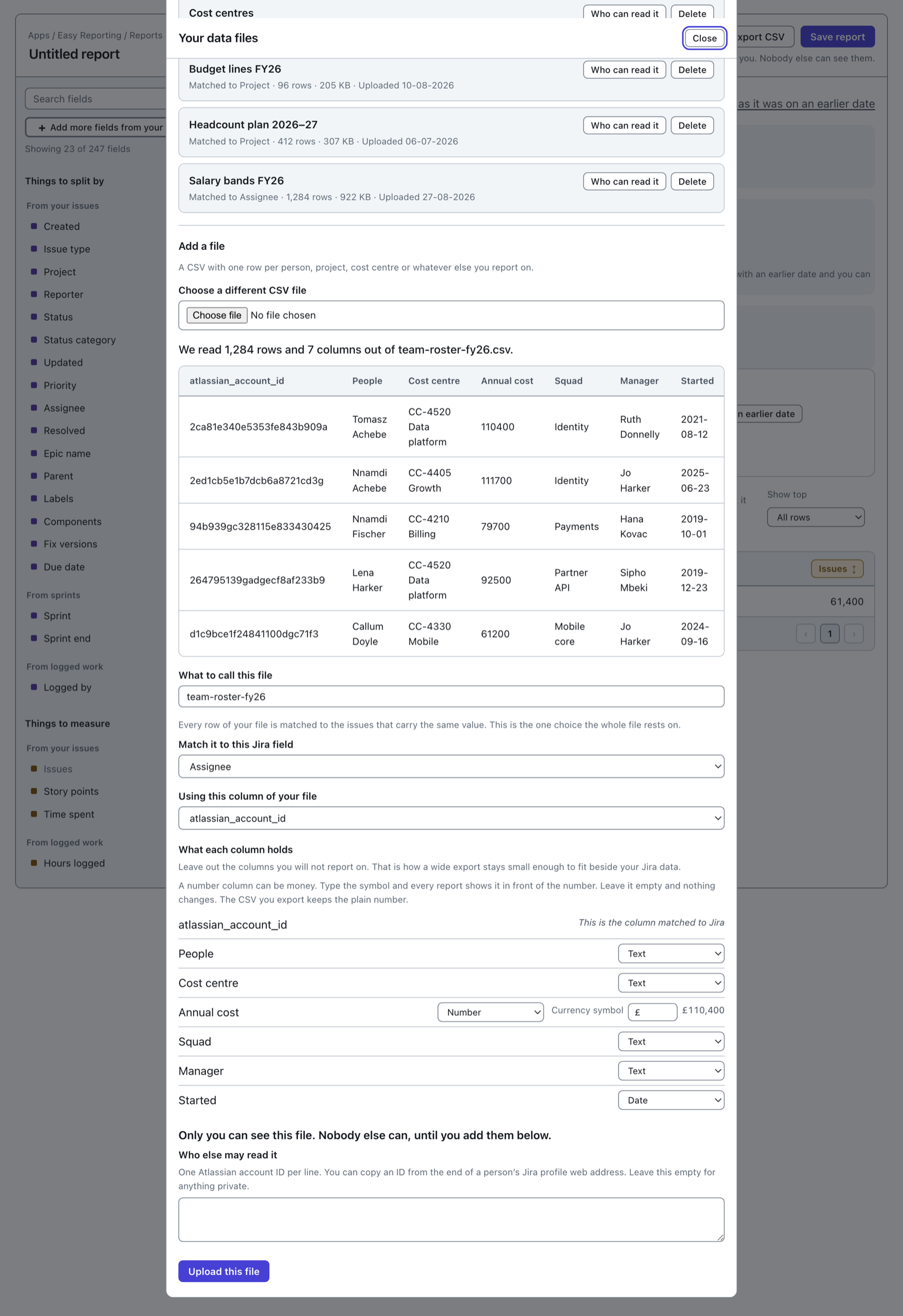 View full size
Leave the box empty and only you can read the file. That is the default and it is the right answer for anything private.
To share it, put one Atlassian account ID per line. You can copy an ID from the end of a person's Jira profile web address.
You can change this list later, so an empty box now costs nothing. See Delete a report or a file.
Upload it
Press Upload this file.
The button is never greyed out for a question you have not answered. If something is still missing, press it and the reasons appear just above it, in words.
Your file goes up in pieces and the screen counts them: Uploading… piece 3 of 12. Stop this upload is beside the counter. Stopping is safe. A file only becomes readable when its last piece arrives, so a stopped upload cannot end up in a report.
Next: Reading the match rate.